

Use built-in schedulers, scripts, and backup tools to run and verify backups automatically.
You want a setup that runs on time, stores copies in safe places, and restores fast when things go wrong. In this guide, I show how to automate backup schedules with clear steps, simple tools, and proven habits. I have planned and managed backups for teams of all sizes, and I’ll share what works, what breaks, and how to fix it. If you came to learn how to automate backup schedules the right way, you are in the right place.
What “automate backup schedules” really means
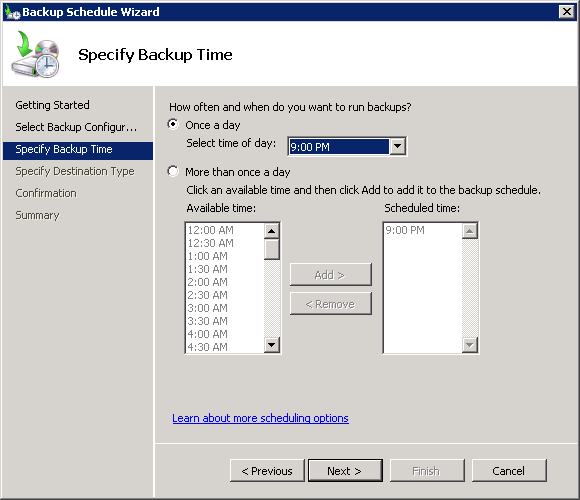
Automation means your data gets backed up with no manual work. It runs on a set time, logs results, and alerts you if a job fails. It also follows a plan for what to copy, where to store it, and how long to keep it.
When people ask how to automate backup schedules, they want trust and speed. Trust comes from stable tools and proof that restores work. Speed comes from the right mix of full and smaller backups. We will cover both so you can sleep well.
Set your goals: RPO, RTO, and the 3-2-1 rule
Start with what you can lose and how fast you must recover.
- RPO is how much data you can lose in time. If your RPO is 4 hours, run backups at least every 4 hours.
- RTO is how fast you must restore. Aim for short tests and fast storage for key data.
- Use the 3-2-1 rule. Keep 3 copies, on 2 types of media, with 1 off-site or immutable.
- Map data tiers. Critical, important, and nice-to-have. Back up and retain each one with a clear plan.
If you want to learn how to automate backup schedules well, start here. It keeps the tech honest and the risks low.
Choose the right tools
There is no one tool for all jobs. Pick what fits your stack and risk.
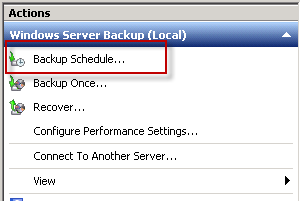
- Local file servers. Use VSS on Windows, rsync on Linux, and Time Machine or rsync on macOS.
- Cloud storage. Use AWS S3, Azure Blob, or Google Cloud Storage with lifecycle rules.
- Managed backup. Use AWS Backup, Azure Backup, Google Backup and DR, or a platform like Veeam or Commvault.
- SaaS data. Use tools for Microsoft 365, Google Workspace, Slack, GitHub, and Salesforce.
- Scripts. Use PowerShell, Bash, or Python with cron or Task Scheduler.
If your target is how to automate backup schedules for mixed systems, go hybrid. Use local fast backups for quick restores, plus cloud for off-site safety.
Build a smart schedule
A good schedule is simple to read and easy to test.
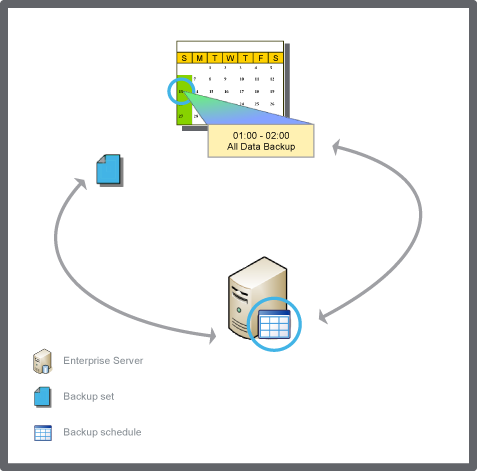
- Full backup. Copy all data. Do this weekly or monthly.
- Incremental. Copy changes since the last backup. Use this daily or hourly.
- Differential. Copy changes since the last full. Use this if restores need to be faster.
Try this pattern:
- Daily incremental Monday to Saturday.
- Weekly full on Sunday night.
- Monthly archive full on the first Sunday.
Add staggered times to avoid load spikes. If your scope is how to automate backup schedules at scale, split jobs per data set. Run big jobs at night and small jobs more often.
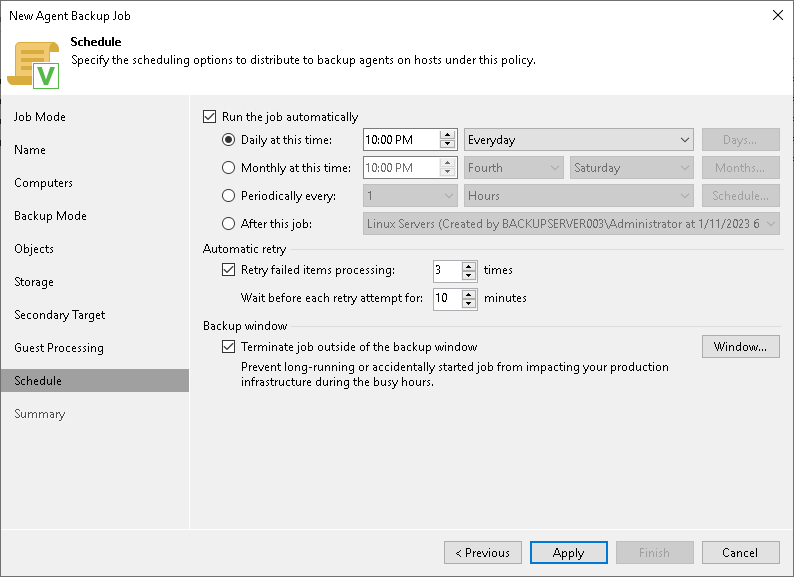
Step-by-step: how to automate backup schedules on Windows, macOS, and Linux
Windows with Task Scheduler and PowerShell
- Create a PowerShell script, for example backup.ps1:
$source = "C:\Data"
$dest   = "\\backupserver\share\Data"
$log    = "C:\Logs\backup.log"
Start-Transcript -Path $log -Append
robocopy $source $dest /MIR /R:2 /W:5 /FFT /Z /XA:SH /XD "C:\Data\temp"
Stop-Transcript
- Open Task Scheduler. Create task, run as highest privileges.
- Trigger daily at 11 PM. Add a weekly full task if needed.
- Set action to run PowerShell with the script path.
- On failure, add an email or webhook action.
Linux with cron and rsync
- Install rsync and set SSH keys for the backup user.
- Create a script, for example backup.sh:
#!/bin/bash
SOURCE="/srv/data/"
DEST="backup@backuphost:/backups/data/"
LOG="/var/log/data-backup.log"
rsync -aAX --delete --numeric-ids --info=stats2 --log-file="$LOG" "$SOURCE" "$DEST"
- Make it executable: chmod +x backup.sh
- Add a cron entry: crontab -e
0 23 * * * /usr/local/bin/backup.sh
macOS with launchd and tmutil
- Connect a Time Machine disk or a network share.
- Control Time Machine by schedule with launchd and tmutil:
#!/bin/zsh
tmutil startbackup --auto --block
- Create a LaunchAgent or LaunchDaemon plist to run at set times.
As you refine how to automate backup schedules, add health checks. Verify exit codes and log files. Send alerts on failure.
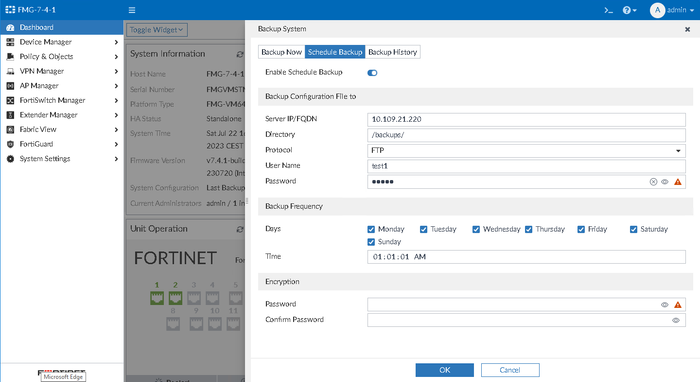
Automating databases and SaaS
Databases need clean snapshots and tested restores.
MySQL and MariaDB
- Use mysqldump for small sets or Percona XtraBackup for large sets.
- Example nightly dump:
mysqldump --single-transaction --routines --triggers dbname | gzip > /backups/dbname-$(date +%F).sql.gz
PostgreSQL
- Use pg_dump for logical or pg_basebackup for physical.
- Example:
pg_dump -Fc dbname > /backups/dbname-$(date +%F).dump
SQL Server
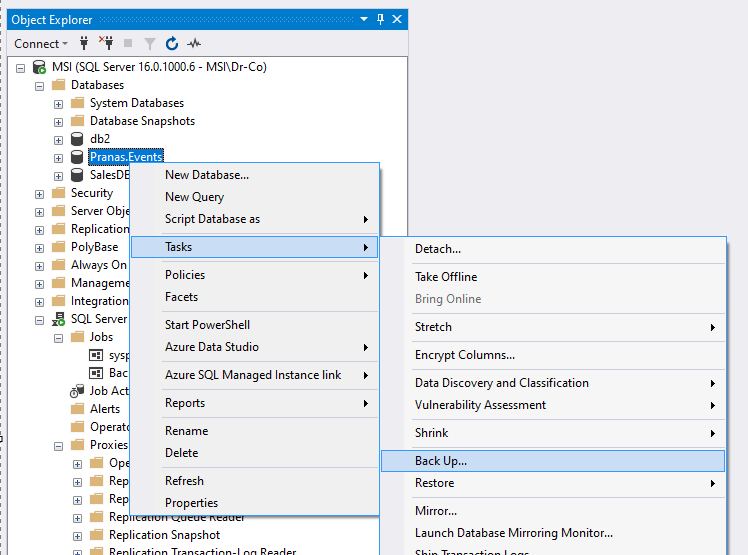
- Use Maintenance Plans or sqlcmd to run full, diff, and log backups.
MongoDB
- Use mongodump for logical or filesystem snapshots with journaling.
SaaS apps
- Microsoft 365 and Google Workspace need third-party backup for mail, Drive, and Teams or Chat.
- Schedule daily full and 3 to 6 times per day incremental for top users.
Document restores. Store checksums and keep at least one off-site copy. If you ask how to automate backup schedules for databases, treat restores as your north star.
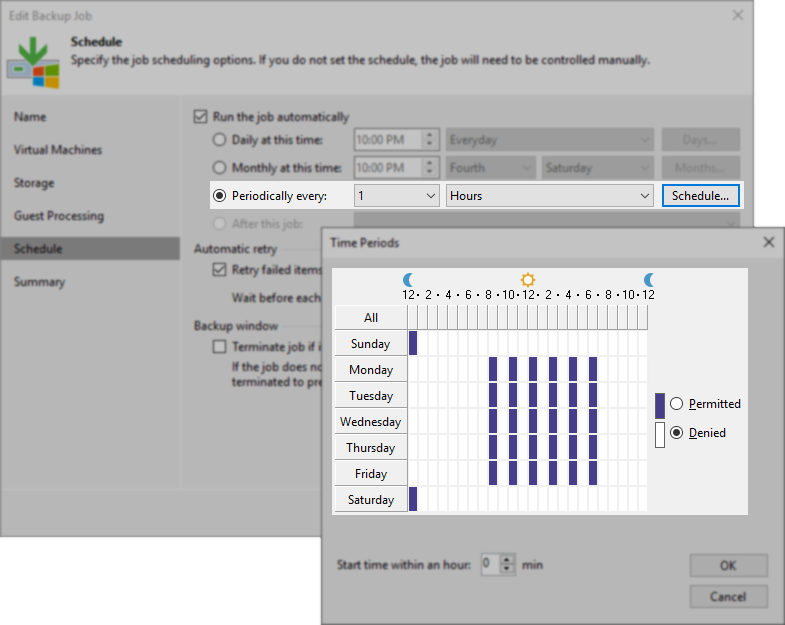
Secure, verify, and monitor
Security is part of the job, not an afterthought.
- Encrypt at rest and in transit. Use KMS or Vault for keys.
- Use least privilege for backup agents and service accounts.
- Enable immutability or object lock where you can.
Verification builds trust.
- Run checksum or hash checks.
- Do a test restore each month. Automate at least one file and one database restore.
Monitor with clear signals.
- Send logs to a SIEM or log tool.
- Alert on failed jobs, slow jobs, or gaps in schedules.
All this makes how to automate backup schedules safe and stable, not just fast.

Cost control and performance tips
You can cut cost without adding risk.
- Use lifecycle rules to move old data to colder tiers.
- Deduplicate and compress to save space and time.
- Throttle bandwidth during business hours.
Tune jobs for less impact.
- Use snapshots to shrink backup windows.
- Exclude temp files, caches, and node_modules when safe.
- Split big jobs into smaller sets.
If your plan is how to automate backup schedules for cloud, watch egress fees. Restore tests help you spot hidden costs.
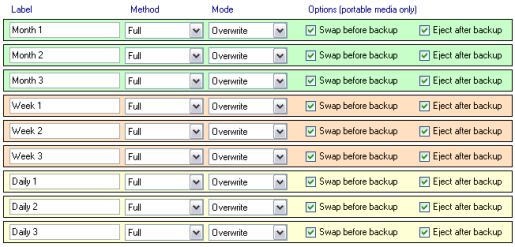
Common mistakes and how to fix them
I see the same misses again and again.
- No restore tests. Fix by adding a monthly test run with a checklist.
- One copy only. Fix with the 3-2-1 rule and an off-site target.
- No alerts. Fix with email, Slack, or webhook alerts on failure.
- Wrong scope. Fix by mapping data and setting tiers.
- Unlimited retention. Fix with clear retention rules by data class.
Keep a short runbook. When people ask how to automate backup schedules and keep them clean, the runbook is the secret sauce.
Real-world playbook: a sample plan for a small team
Here is a simple plan I have used for a 15-person team.
- Files. Daily incremental with rsync at 10 PM. Weekly full on Sunday. Monthly archive to S3 with object lock for 30 days.
- Databases. Nightly pg_dump to local. Sync to S3. Weekly physical snapshot.
- SaaS. Daily Microsoft 365 backup with 90-day retention.
- Tests. First Monday each month, restore one folder and one database table.
- Alerts. Send failures to Slack and email.
This is a great start if you want to learn how to automate backup schedules without big tools. It scales as your needs grow.
Frequently Asked Questions of how to automate backup schedules
How often should I run backups?
Match the schedule to your RPO. Many teams run hourly incrementals for key data and daily full or weekly full jobs for the rest.
What is the best tool to automate backups?
Use what fits your stack and skills. For mixed systems, a backup suite plus simple scripts often gives the best mix of control and ease.
How do I test that backups work?
Do a real restore to a safe place. Check file counts, checksums, and app behavior after the restore.
How long should I keep backups?
Tie retention to legal and business needs. Common tiers are 30 days for dailies, 12 weeks for weeklies, and 12 months for monthlies.
How do I protect backups from ransomware?
Use immutable storage, off-site copies, and least privilege. Do not let production accounts delete backup data.
Can I automate backups on a budget?
Yes. Use rsync or robocopy, cron or Task Scheduler, and cloud cold storage. Add alerts with simple scripts or webhook calls.
Does automation cover SaaS like Microsoft 365?
Not by default. Use a tool built for SaaS and schedule it like any other backup job.
Conclusion
You now have a clear path to plan, build, and run safe backups on time. Set targets, pick tools that fit, and test restores often. Keep the plan simple, then improve it with alerts, checks, and better storage.
Start today. Write down your RPO and RTO, pick one data set, and automate its backup this week. If this helped, subscribe for more guides or leave a comment with your questions about how to automate backup schedules.



