
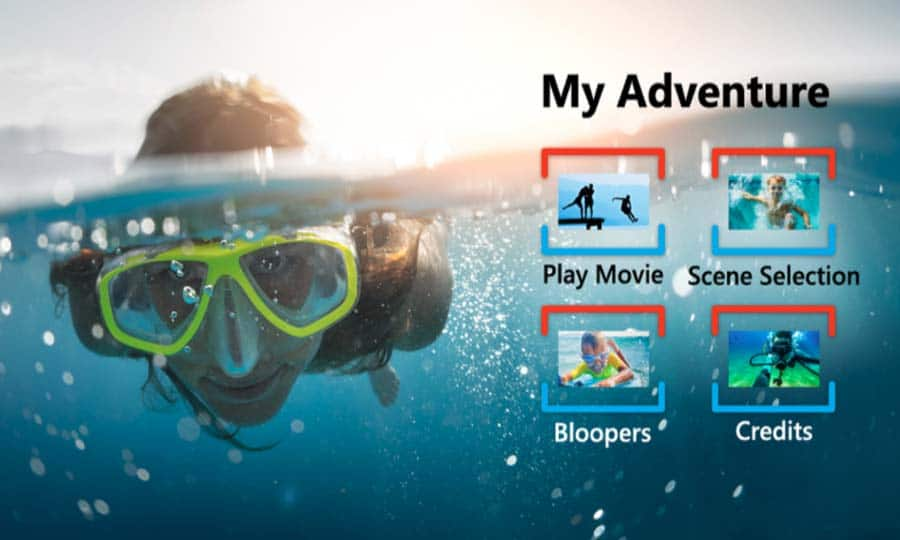
Use DVD authoring software to set chapter markers, then author and burn.
If you want smoother navigation, better viewer control, and a polished disc, learning how to add chapters to DVD is worth it. I’ve authored discs for weddings, training, and indie films for years. This guide shows exactly how to add chapters to DVD on Windows, macOS, and Linux, with simple steps, pro tips, and real-world advice that actually works.
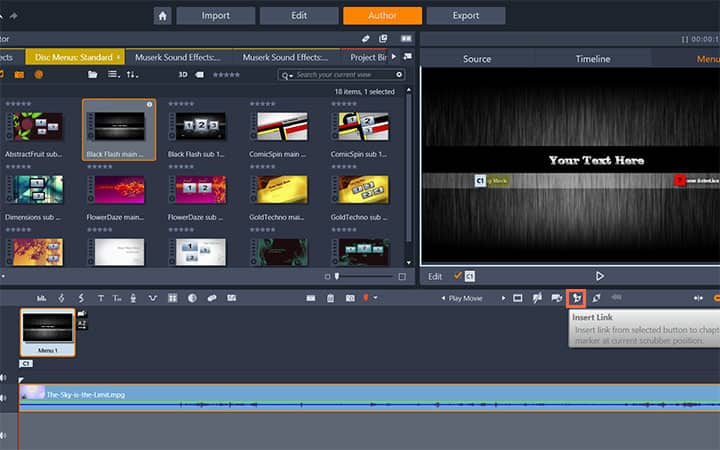
What DVD chapters are and why they matter
Chapters are navigation points inside a title on a DVD-Video. They let viewers jump to scenes with the remote. Good chaptering makes your disc feel professional and easy to use.
The DVD spec allows up to 99 chapters per title. Chapters can map to menu buttons, or work with the Next and Previous keys. If you came here to learn how to add chapters to DVD without drama, the key is to plan your markers before you encode.
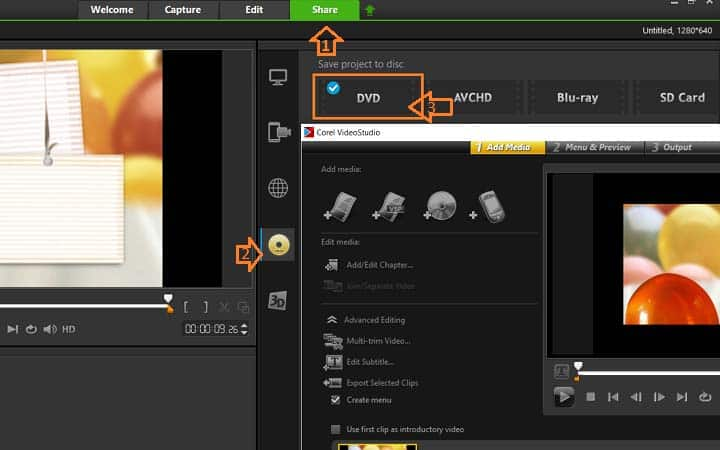
Requirements and tools for how to add chapters to DVD
You can add chapters with many tools, but the workflow is the same. Prepare your video, set chapter points, author the disc, then burn or export an ISO.
What you need:
- Source video in good quality. If it’s MP4, MOV, or MKV, the authoring app will convert it.
- Output format that meets the DVD-Video spec. MPEG-2 video, 720x480 NTSC or 720x576 PAL, 48 kHz audio.
- A reliable authoring tool for how to add chapters to DVD.
Popular tools by platform:
- Windows
- DVDStyler (free, cross‑platform)
- DVD Flick (free, legacy but simple)
- AVStoDVD (free, flexible)
- TMPGEnc Authoring Works (paid, very robust)
- macOS
- Roxio Toast Titanium (paid, active)
- Burn (free, basic; limited control)
- Legacy tools like iDVD or DVD Studio Pro still work on older Macs
- Linux
- DVDStyler, DeVeDe, Bombono DVD, or the dvdauthor command line
Tip from experience: when I learned how to add chapters to DVD at scale, I kept my video lengths and bitrates planned. That made chapter timing accurate and discs more stable.
Step-by-step: how to add chapters to DVD with DVDStyler (Windows, macOS, Linux)
DVDStyler is free and powerful. It supports manual and automatic chapter markers and custom menus.
Do this:
- Install and open DVDStyler. Choose NTSC 720x480 (29.97 fps) or PAL 720x576 (25 fps). Pick 16:9 or 4:3 to match your footage.
- Drag your video onto the Title 1 track. If it’s not MPEG-2, DVDStyler will encode it.
- Right-click the title. Choose Properties, then Chapters.
- Add chapters in one of three ways:
- Auto chapters every 5 or 10 minutes for quick setup.
- Manual timestamps like 00:00:00;00, 00:05:20;00, 00:12:10;00.
- Load from file if you have a chapters.txt list.
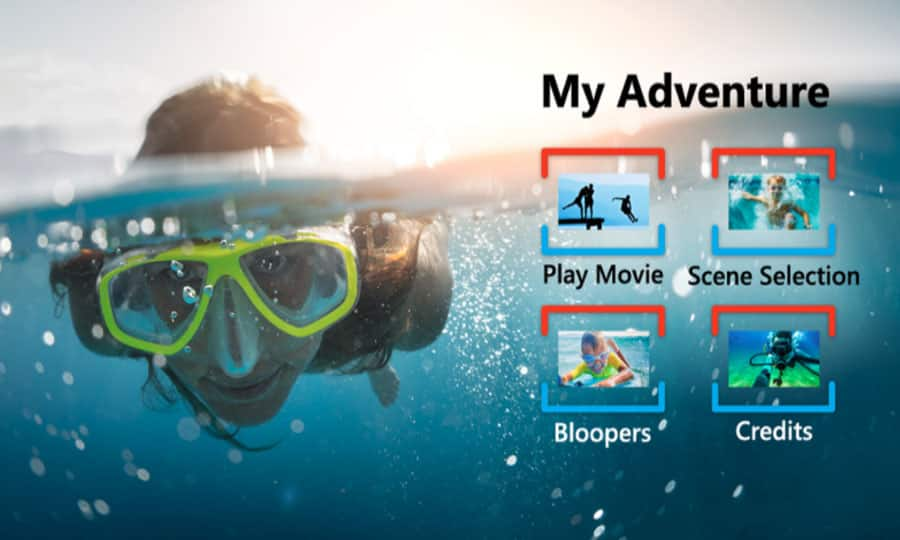
- Optional: design a Chapter Menu.
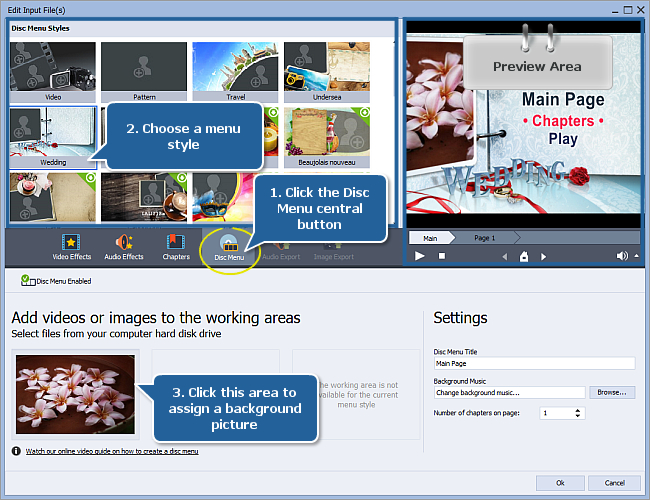
- Insert a menu page. Add thumbnail buttons.
- Link each button to the chapter with the Jump command.
- Click Preview. Test Next and Previous on the simulated remote.
- Choose Burn or Create ISO. I often export an ISO, then burn with a dedicated tool for reliability.
- Test the ISO with a software player before you burn a disc.
This method is one of the easiest ways for beginners learning how to add chapters to DVD.
Step-by-step: how to add chapters to DVD with DVD Flick (Windows)
DVD Flick is older but still popular for simple projects.
Follow these steps:
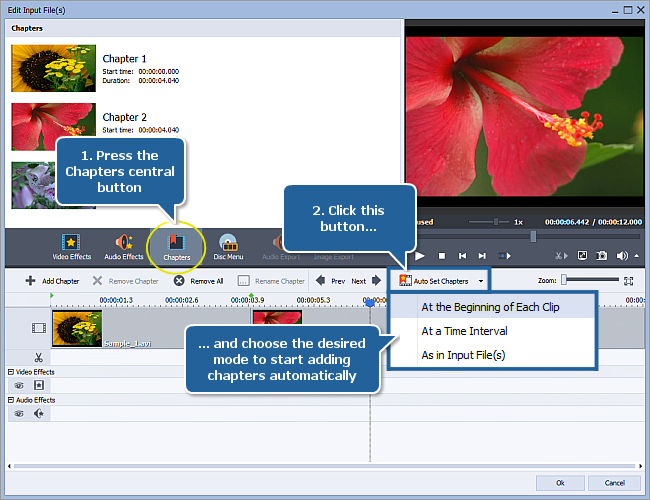
- Install and open DVD Flick. Click Add title to import your video.
- Click Edit title, then Chapters.
- Choose how to add chapters:
- Create chapters every X minutes.
- Create a set number of chapters evenly spaced.
- Add them manually at exact times.
- In Project settings, set Target format to NTSC or PAL. Turn on Create ISO if you like to test first.
- Click Create DVD. DVD Flick can hand off to ImgBurn to burn the disc.
If your goal is quick and simple, DVD Flick is a stress-free path for how to add chapters to DVD.
Step-by-step: how to add chapters to DVD with Roxio Toast (macOS)
Toast is a modern, supported app on Mac. It gives you good control without a steep learning curve.
Try this:
- Open Toast. Go to the Video tab. Choose DVD-Video as the format.
- Add your movie files. Set aspect ratio and quality.
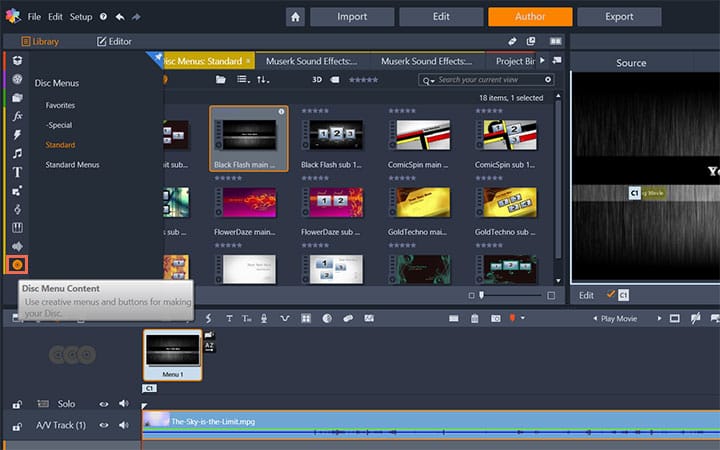
- Click the Options or Customize panel. Open the Chapters area.
- Choose automatic chapters (by time) or insert manual markers. You can also build a chapter menu.
- Preview your project. Check remote navigation and menu links.
- Insert a blank disc. Click Burn. Toast will encode and author the disc.
If you are on Mac and want a stable route for how to add chapters to DVD, this is my go-to choice.

Advanced methods: timecode lists, dvdauthor CLI, and reauthoring
If you like precise control, you can script chapters.
Helpful paths:
- dvdauthor with XML
- Create an XML file that lists your titles and chapter points.
- Run dvdauthor to build a VIDEO_TS folder, then burn with a separate tool.
- Chapter text lists
- Many tools accept a plain text file with timestamps on separate lines.
- Example times: 00:00:00.000, 00:03:45.000, 00:08:10.000.
- Export markers from your NLE
- Premiere Pro, Final Cut Pro, and DaVinci Resolve can export markers or EDLs.
- Map those to your authoring app’s chapter import.
Note on editing existing DVDs:
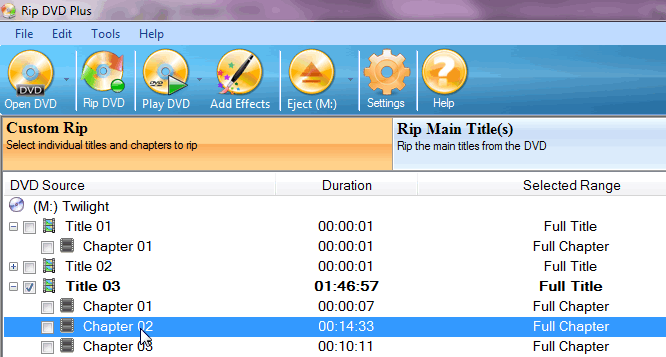
- You can try tools like PgcEdit or IFOEdit to tweak chapter tables. It’s risky and often breaks playback if the VOB layout is not aligned.
- The reliable route for how to add chapters to DVD is to reauthor from the source files.
Best practices and chapter strategy
Great chapters feel natural, not random. These habits make a difference.
Use these tips:
- Start with a chapter at 00:00:00. Viewers expect it.
- Place a chapter at major scene changes or topic shifts.
- For long content, add a chapter every 3 to 10 minutes.
- Keep it under 99 chapters per title to meet spec.
- Test with a remote. Make sure Next and Previous behave as expected.
- Plan bitrate and length. For a 2-hour disc, target 4 to 5 Mbps video with AC-3 audio for compatibility.
When I first learned how to add chapters to DVD, I overdid it with too many markers. Viewers got lost. Fewer, smarter chapters improved the experience.
Troubleshooting and common mistakes when learning how to add chapters to DVD
Things can go wrong. Most issues have simple fixes.
Watch for:
- Audio sync drift
- Re-encode audio to 48 kHz AC-3 at 192 to 384 kbps.
- Avoid mixing VBR audio with odd sample rates.
- Field order and motion issues
- SD MPEG-2 can be top-field-first or bottom-field-first. Use the correct order when encoding.
- Timecode mismatches
- NTSC uses 29.97 fps. Use drop-frame timecode when needed. Avoid rounding to 30.
- Menus not linking to chapters
- Check each button’s target. It must point to a chapter, not only the title.
- Disc won’t play on set-top DVD players
- Finalize the disc. Use good media. Stick to DVD-Video, not a data disc.
Keep testing ISOs in a software player before you burn. This saves discs and time when you are perfecting how to add chapters to DVD.
Legal and technical notes for safe authoring
A few guardrails will keep your project safe and compatible.
Consider this:
- Don’t modify commercial, copy-protected discs. That is often illegal and breaks encryption.
- Stick to the DVD-Video spec. MPEG-2 video, 48 kHz audio, correct frame rates.
- Use region-free settings unless you have a reason to lock the disc.
- For widescreen, set the proper 16:9 flags so players display it right.
- Always keep a master ISO and your chapter list for future edits.
These basics keep your workflow stable while you practice how to add chapters to DVD the right way.
Frequently Asked Questions of how to add chapters to dvd
Can I add chapters without re-encoding the video?
Sometimes, but it is not reliable. Most tools will reauthor the disc to keep chapters in sync with the video structure.
How many chapters can I add to one title on a DVD?
Up to 99 chapters per title, as defined by the DVD-Video spec. Most projects don’t need that many; aim for clear scene markers instead.
Do chapter markers affect video quality?
No, chapters are navigation points. Quality depends on your encoding settings like bitrate, resolution, and field order.
Can I copy chapters from an MP4 or MKV to a DVD?
You must map them manually. MP4 or MKV chapter metadata does not transfer automatically to DVD-Video authoring.
Why are my chapter times slightly off after authoring?
Frame rate and timecode rounding cause small shifts. Use exact timecodes and match NTSC or PAL settings to the source.
What is the best free tool to learn how to add chapters to DVD?
DVDStyler is a great start. It is free, cross-platform, and offers both manual and automatic chapters.
How do I test chapters before burning a disc?
Export an ISO and open it with a software DVD player. Test the Next and Previous buttons and any chapter menus.
Conclusion
You now know how to add chapters to DVD with reliable tools, clear steps, and a smart chapter strategy. Plan your markers, author to spec, and test an ISO before burning. Your viewers will enjoy fast, clean navigation that feels pro.
Put this into action on your next project. Try one of the workflows above, note what works for you, and save your chapter lists for reuse. If you found this useful, subscribe for more hands-on guides or leave a comment with your chapter tips.



