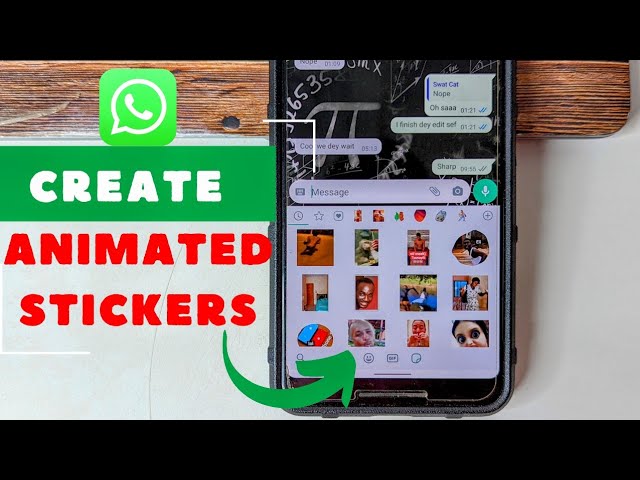
Add animated stickers to a video by layering GIFs, PNGs, or Lottie over clips.
If you want your edits to pop, learning how to add animated stickers video is a fast win. I’ve produced social ads, Reels, and Shorts at scale, and I’ll show you a simple path. We’ll cover tools, exact steps, best practices, and pro tips. By the end, how to add animated stickers video will feel easy and repeatable for any platform.
What Are Animated Stickers And Why They Work
Animated stickers are small motion graphics you place over a video. Think GIFs, APNGs, Lottie JSON, or short MOV/WebM clips with transparent backgrounds. They loop, bounce, or wiggle. They grab the eye right away.
They work because motion guides attention. A sticker can point to a product, highlight a word, or add humor. They also help you stay on trend. The right sticker can double watch time and improve tap-through.
Common formats to know:
- GIF. Easy to add. No alpha by default. Use a flat color background or pre-keyed file.
- PNG sequence or MOV/WEBM with alpha. Best for clean edges and transparency.
- Lottie (.json). Vector-based. Tiny files. Great for apps and web. Many editors need a plug-in or a render to video.
Use cases I see often:
- Add sparkle to a beauty product.
- Add arrows to frame a face.
- Add looping emojis to make text feel alive.

The Quick Workflow: how to add animated stickers video on any device
You can add stickers in minutes. Here is the process I use on phones and desktops.
- Pick your editor. CapCut, VN, KineMaster, Adobe Premiere Pro, DaVinci Resolve, or Apple Clips.
- Import your video. Trim your clip first.
- Add the sticker. Import a GIF, Lottie render, or MOV with alpha.
- Resize and place. Keep to the safe area to avoid crops.
- Match timing. Trim to beats or speech.
- Add subtle motion. Use keyframes for scale or rotation.
- Export with the right settings for your platform.
This is how to add animated stickers video with less fuss and more fun.
Mobile Step-by-Step
iPhone and iPad (CapCut or Apple Clips)
CapCut is fast and free. It handles stickers well.
Steps in CapCut (iOS):
- Create a new project. Import your video.
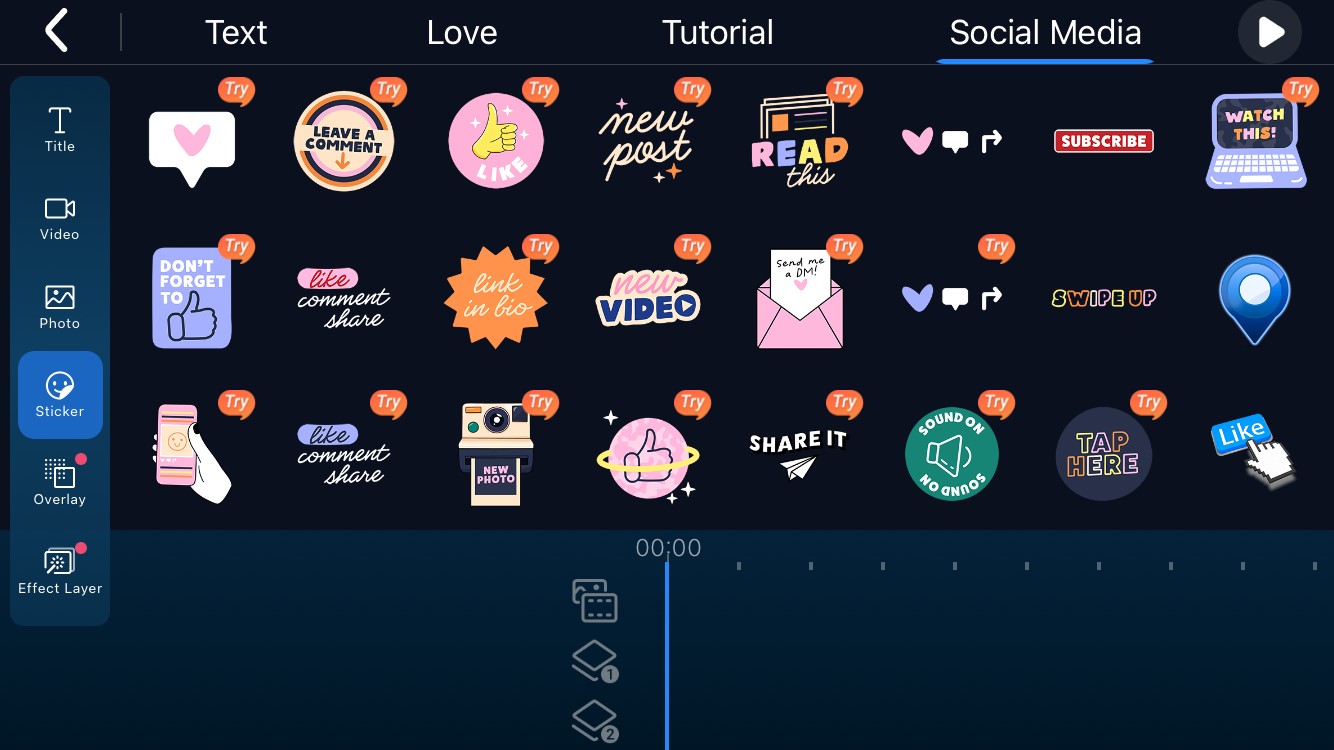
- Tap Overlay. Tap Add overlay. Choose your sticker file.
- For GIFs with solid backgrounds, use Cutout or Chroma Key if needed.
- Resize, move, and rotate the sticker. Place it in a safe zone.
- Tap Keyframe to add gentle movement.
- Export at 1080p, 30 or 60 fps.
Steps in Apple Clips:
- Open Clips. Start a new project. Import your video.
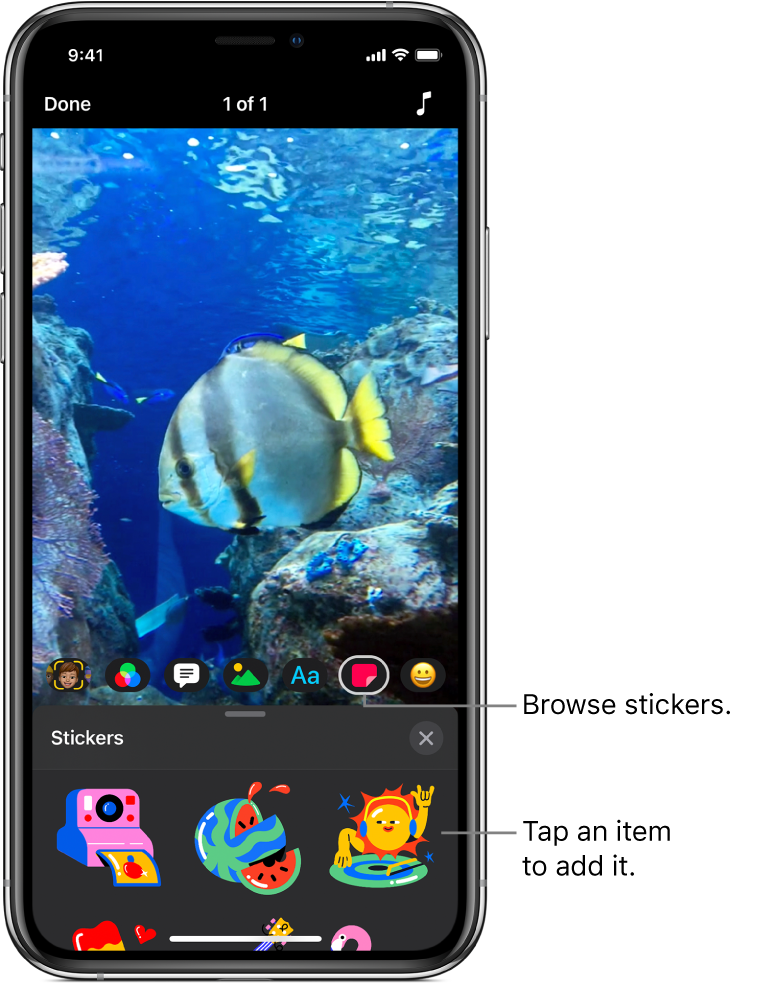
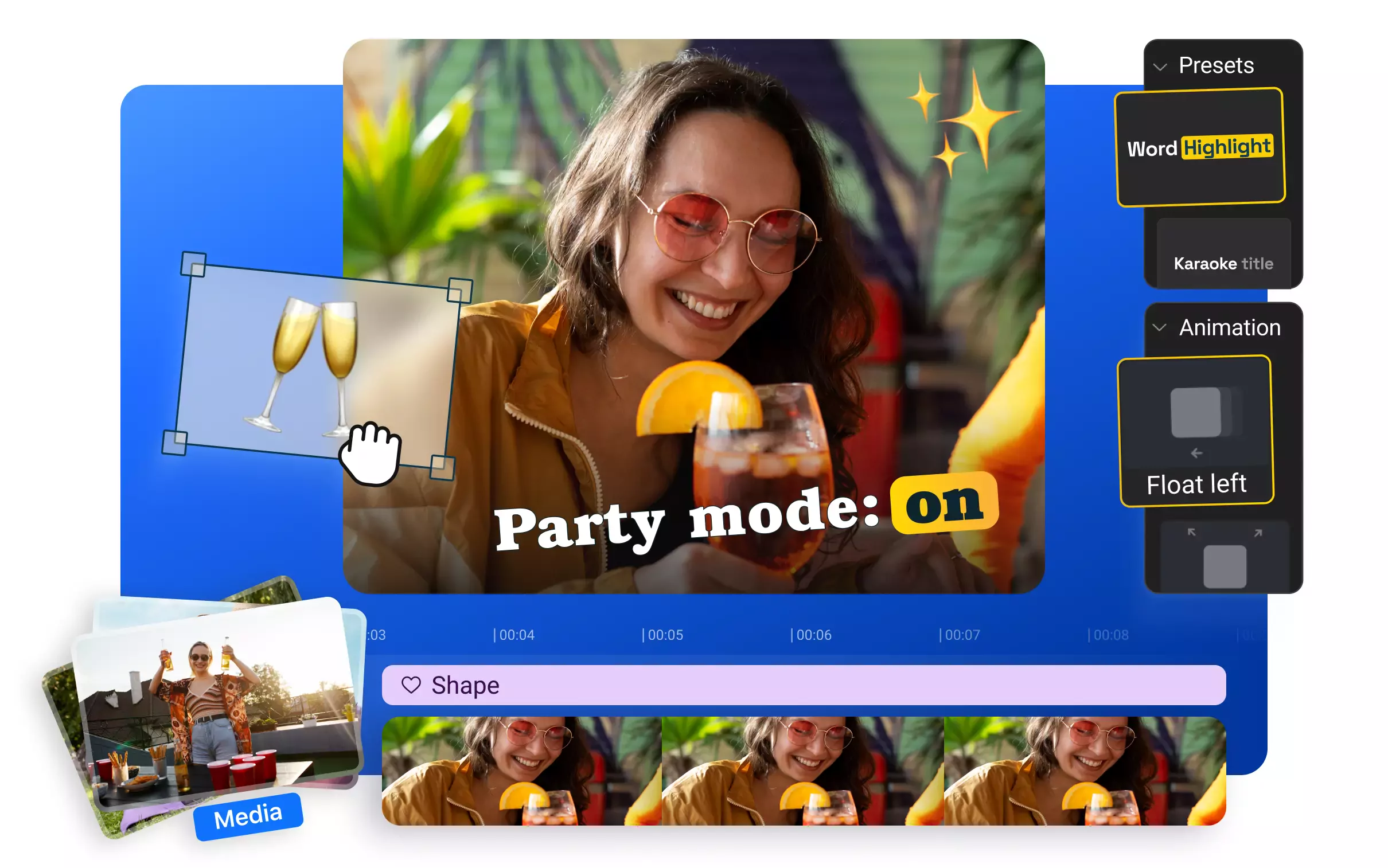
- Tap the star icon. Choose animated stickers.
- Resize and place. Record to bake in the sticker.
- Save to Photos.
Android (CapCut or InShot)
Steps in CapCut (Android):
- New project. Add your video.
- Tap Overlay. Add overlay. Import sticker file.
- Use Blend or Cutout to clean edges if needed.
- Add keyframes for motion. Adjust opacity for subtle style.
- Export at 1080p, high bitrate.
Pro tips from client work:
- Keep sticker size under 10 percent of frame for subtle style.
- Use two stickers max per beat to avoid clutter.
- Pulse scale from 95 to 105 percent for energy.
This is a mobile-first path for how to add animated stickers video that looks pro.
Desktop Step-by-Step
CapCut Desktop
- Create a project. Drag your video to the timeline.
- Drag stickers onto a track above the video.
- If you need transparency, use MOV ProRes 4444 or WebM with alpha.
- Add motion with keyframes. Ease in and out for smooth feels.
- Export with H.264 for most platforms.
Adobe Premiere Pro
- Import your video and stickers. Animated GIFs import as clips.
- For sharper edges, use a PNG sequence or MOV ProRes 4444.
- Place the sticker on a track above. Set Blend Mode if needed.
- Use Motion controls for position, scale, and rotation keyframes.
- Export with Match Source High Bitrate or platform presets.
After Effects (for custom stickers)
- Import your video. Create shapes or text as a precomp.
- Animate scale, position, rotation, and opacity.
- Export as MOV ProRes 4444 or WebM with alpha.
- Import the render into Premiere or CapCut as a sticker.
When teams ask me how to add animated stickers video for ads, I build in After Effects, export with alpha, and finish in Premiere. It keeps the look crisp across edits.
Where To Find Or Create Animated Stickers
You have options. Choose safe, high-quality sources.
Find ready-made stickers:
- GIPHY or Tenor for fun loops.
- Lottie libraries for vector-based animations.
- Stock motion sites with ProRes 4444 alpha files.
Create your own:
- Canva. Build simple motion graphics with transparency.
- Procreate on iPad. Use Animation Assist. Export as PNG sequence or GIF.
- After Effects. Build vectors. Export to ProRes 4444 or WebM alpha.
- Figma plus plugins for quick Lottie exports.
Check licensing. Many GIFs are for personal use only. For ads, use commercial-safe assets. This is a key part of how to add animated stickers video for brands without risk.

Design And Placement Best Practices
Great stickers feel intentional. Not random. Use these rules I apply on paid campaigns.
Placement and motion:
- Keep stickers inside title-safe margins to avoid crops on Reels and Shorts.
- Use the rule of thirds. Align near eyes, hands, or the call to action.
- Add a soft drop shadow or stroke for contrast.
Color and style:
- Match brand colors. Avoid clashing hues.
- Use a limited palette. Two or three colors often work best.
- Keep motion smooth. Ease in and out. Avoid harsh jumps unless for humor.
Technical tips:
- Prefer files with alpha: ProRes 4444, WebM VP9 alpha, or HEVC with alpha on iOS.
- Avoid low-frame-rate GIFs. They can flicker at 12 fps.
- Arrange layers. Stickers should not cover key faces or captions.
These choices define how to add animated stickers video that looks premium, not messy.

Export Settings By Platform
Export clean. Keep file sizes lean. Follow platform norms.
TikTok and Reels:
- 1080 x 1920, H.264, High Profile.
- 15 to 25 Mbps for crisp stickers.
- 24, 30, or 60 fps. Match your source.
YouTube Shorts:
- 1080 x 1920, H.264 or HEVC.
- 20 to 30 Mbps for 60 fps Shorts.
Stories and Snap:
- 1080 x 1920. 10 to 16 Mbps can be enough.
- Watch the safe area. UI can cover top and bottom.
If you need deep color, use 10-bit HEVC. For most social, 8-bit H.264 is fine. This is the final mile in how to add animated stickers video without banding.

Troubleshooting And Pro Tips
Stickers look jagged?
- Use higher-resolution files. Avoid tiny GIFs scaled up.
- Use anti-aliased renders with alpha.
Color looks off?
- Convert color space to Rec.709. Avoid mixed color profiles.
- Export from After Effects with correct working space.
Choppy loops?
- Match frame rate to the edit. 30 fps is a safe bet.
- Add a short crossfade at the loop point.
File too big?
- Use WebM VP9 with alpha when supported. It is lighter than ProRes.
- Shorten the loop. Cut duplicate frames.
From experience, a clean alpha sticker plus gentle scale keyframes beats busy stacks. That small choice is how to add animated stickers video that viewers watch to the end.
Frequently Asked Questions of how to add animated stickers video
Can I add animated stickers directly in Instagram or TikTok?
Yes. Both editors let you add stickers on Reels or Stories. For brand control, edit in CapCut or Premiere first, then upload.
What file format gives the cleanest edges?
MOV ProRes 4444 or WebM VP9 with alpha looks very clean. GIF can work, but edges may look rough.
How do I keep stickers from covering captions?
Use safe margins. Test in the app preview, since UI can cover lower thirds.
Does how to add animated stickers video work for long YouTube videos?
Yes. Use stickers to highlight chapters or jokes. Keep them short to avoid clutter.
Where can I find legal stickers for business use?
Use stock libraries or create your own in Canva or After Effects. Check the license for commercial rights.
Is Lottie better than GIF for how to add animated stickers video?
Lottie files are smaller and stay sharp at any size. Many editors need a render to video first.
How many times should I repeat stickers in a short?
Two to three loops per beat is enough. Too many loops can feel noisy.
Can I key out a GIF background if it is not transparent?
Yes. Use Chroma Key on solid colors. Better yet, export with true alpha.
Conclusion
You now know how to add animated stickers video from start to finish. Choose the right files, place them with intent, and export for each platform. Small motion and smart placement lead to big lift in attention.
Try one edit today. Add one sticker, one keyframe, and one subtle bounce. Share your result, subscribe for more guides, and tell me what you want to learn next.