

Use simple, automated backup software to protect files locally and in cloud.
You are in the right place. This beginner guide to computer backup software shows you how to protect your files with tools that are easy to set up and hard to mess up. I have built, fixed, and tested backup plans for years. I know what fails, what saves the day, and what a first setup should look like. Stay with me, and you will leave with a plan that works.
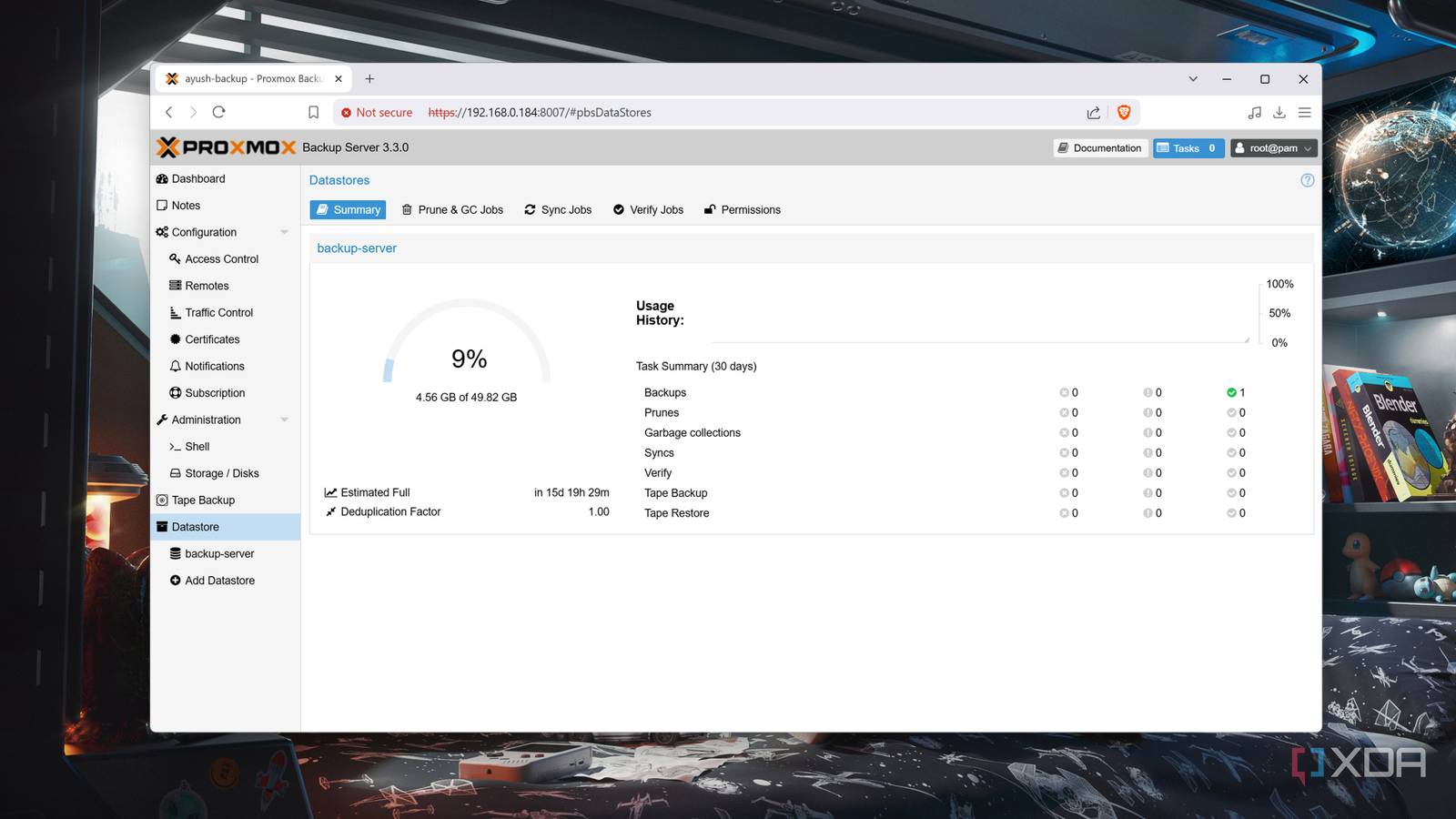
What computer backup software does and why it matters
At its core, backup software makes safe copies of your files. It keeps your photos, docs, and apps safe when things go wrong. Disks fail. Laptops get stolen. A bad click can delete your work. A beginner guide to computer backup software helps you avoid loss with simple steps you can trust.
Think of backup as time travel for your data. You can roll back to a clean state when a mistake or attack hits. Modern tools run on a schedule, encrypt your files, and alert you if a job fails. You set it once and it protects you every day.
In client work, I have seen two kinds of users. Those who have backups and those who wish they had them. The gap is one setup session.

Core concepts you must know before you start
A strong beginner guide to computer backup software starts with simple terms. Learn these, and the rest gets easy.
- Full backup: One big copy of all chosen files or the whole system. Best for first run.
- Incremental backup: Copies only changes since the last backup. Fast and small.
- Differential backup: Copies changes since the last full backup. Larger than incremental, still faster than full.
- File level vs image backup: File level protects folders and files. Image backup captures the whole disk, system state, apps, and boot data.
- Versioning: Keeps past versions of files. Great for undoing bad edits or ransomware hits.
- Retention: Rules for how long to keep versions. Balances safety and cost.
- Scheduling: Set it to run daily or hourly. The more you change files, the more you should back up.
If you forget the details, remember this: start with a full backup, then run incrementals on a schedule. Test restores. Tweak later.

How to choose the right backup software
There is no one best tool for all cases. A strong beginner guide to computer backup software helps you match needs to features.
- Platform support: Windows, macOS, or Linux. Check if it supports your OS well.
- Types of backup: File level and disk image options. You may want both.
- Ease of use: Clean setup, clear restore steps, and helpful alerts.
- Speed and resource use: Compression and deduplication can save space and time.
- Storage options: Local drive, NAS, cloud, or all three.
- Security: AES encryption, password protection, and two-factor login for cloud accounts.
- Ransomware defense: Versioning and immutable or locked backups reduce risk.
- Support and updates: Active development and fast fixes when OS updates break things.
- Cost model: One-time license or subscription. Cloud fees add up, so plan ahead.
Well known options include Time Machine on macOS, Windows File History, and third-party tools like Macrium, Acronis, Veeam Agent, and cloud services like Backblaze or iDrive. Pick one you will actually use. A simple tool you trust beats a complex one you ignore.
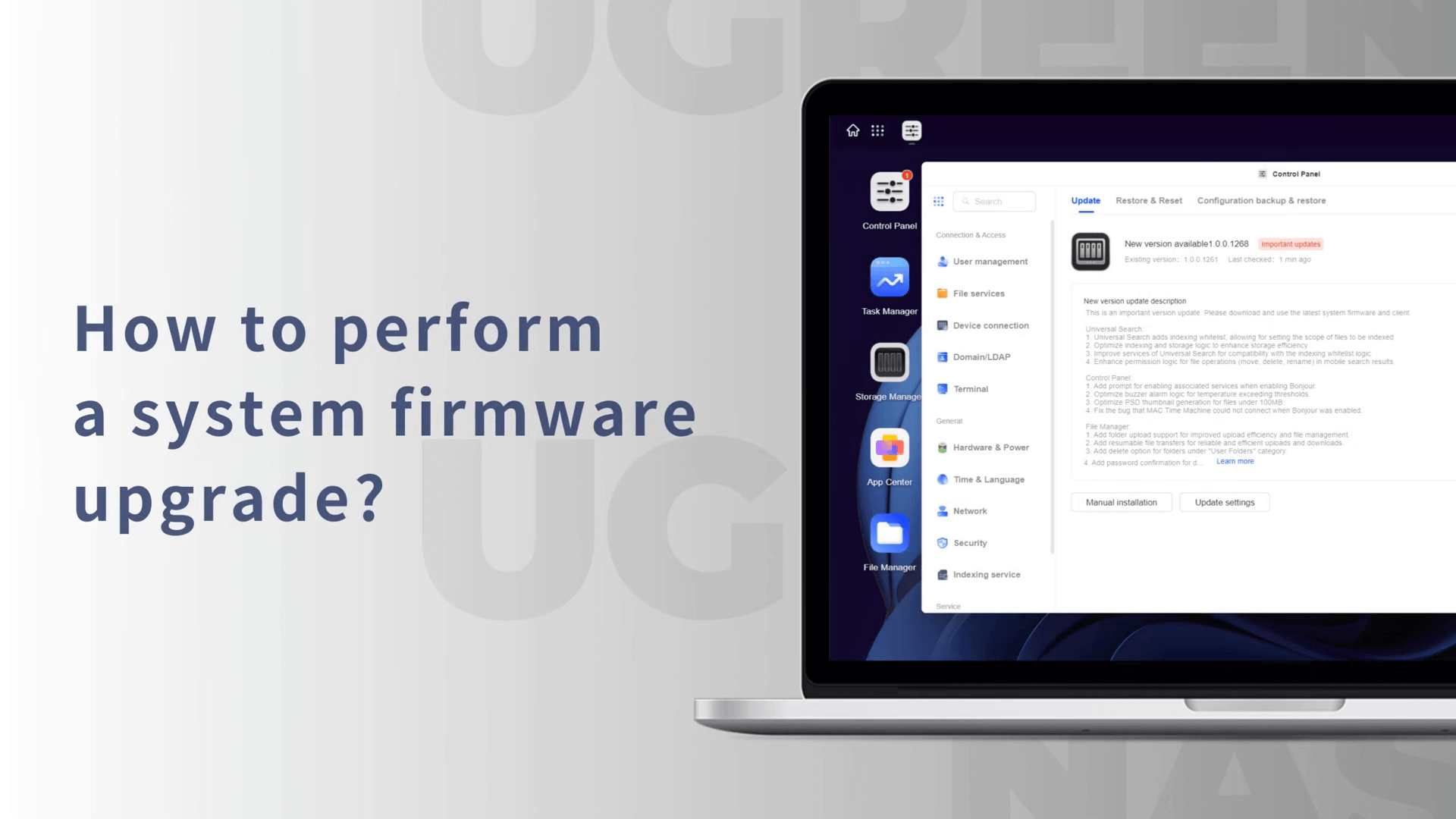
Set up your first backup: a simple step-by-step plan
This is the heart of any beginner guide to computer backup software. Follow this path and you will be safe.
- Define what to protect
- Documents, photos, videos, and project folders
- App data and browser profiles
- A full system image if you want a fast bare-metal restore
- Choose where to store
- External USB drive for speed
- NAS for home networks
- Cloud for offsite safety
- Use the 3-2-1 rule
- Three copies of your data
- Two different types of media
- One copy offsite in the cloud or at another location
- Install and configure
- Create an encrypted backup set with a strong passphrase
- Schedule daily incremental and weekly full backups
- Set retention, for example 30 to 90 days of versions
- Run the first full backup
- Plug in power for laptops
- Let it finish without sleep mode
- Verify and test restore
- Restore a few files to a temp folder
- Open them to confirm they work
I once helped a photo studio that thought they had backups. They did not test restores. A power surge fried a PC and a drive. We saved eight years of work because a cloud copy still existed. Test restores are not a nice-to-have. They are your lifeline.

How to test, monitor, and restore with confidence
A beginner guide to computer backup software would be incomplete without a focus on restores. Backups are only as good as your last restore test.
- Test restores monthly. Pick a few random files and one full folder.
- Check logs and alerts after each job. Fix errors right away.
- Use checksums or verification features when available.
- Keep a restore plan. Where are your keys, passwords, and steps?
Do a small fire drill. Pretend your laptop is gone. Can you restore to a spare machine or a VM? If the answer is no, shrink the gap now.
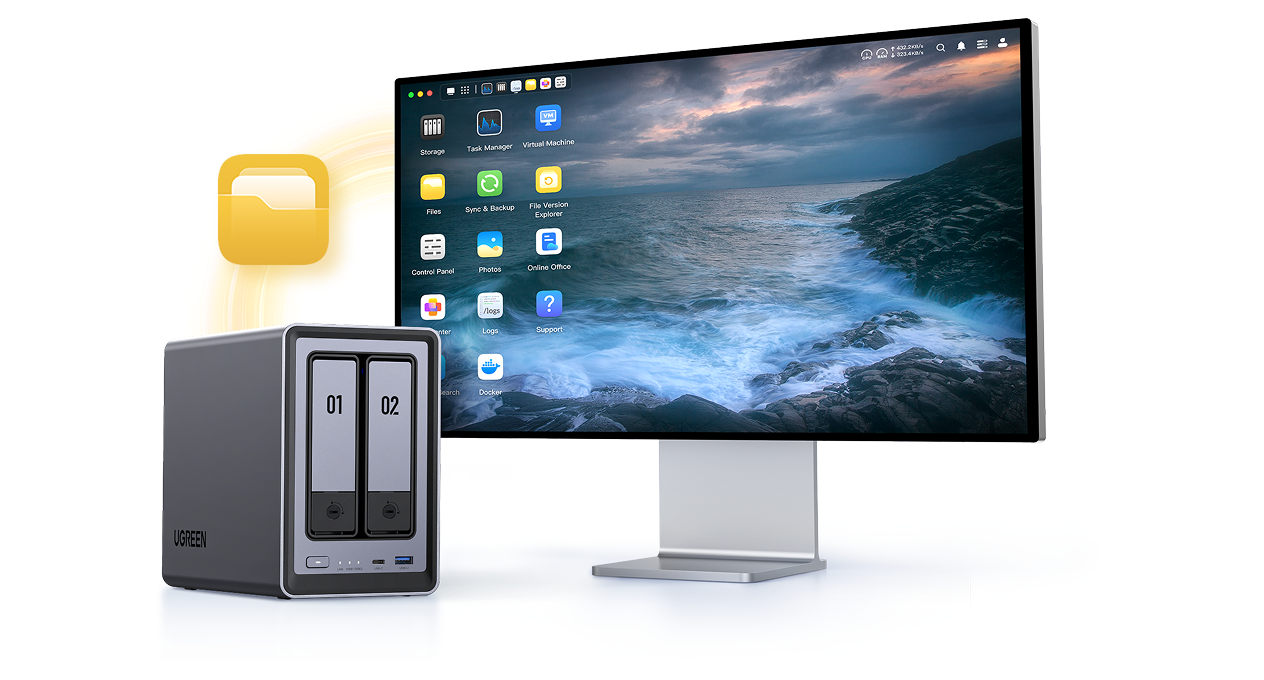
Cloud vs local vs hybrid: choose the best fit
This section in our beginner guide to computer backup software explains how to choose storage for both safety and cost.
Local backups
- Pros: Fast backups and restores, low ongoing cost
- Cons: Theft, fire, and power surges can wipe them out
Cloud backups
- Pros: Offsite by default, works anywhere, versioning is simple
- Cons: Monthly fees, slower large restores, may have egress limits
Hybrid backups
- Pros: Best of both worlds, local speed with cloud safety
- Cons: More moving parts, a bit more setup work
A hybrid plan is ideal for most people. Back up to a USB drive for speed and to the cloud for offsite safety.
Security basics: protect backups like treasure
The best beginner guide to computer backup software treats security as a core feature, not an add-on.
- Encrypt in transit and at rest. AES-256 is standard in many tools.
- Use two-factor login for cloud accounts.
- Store keys in a password manager. If you lose a zero-knowledge key, even support cannot help you.
- Turn on versioning and immutable or locked backups where possible. This helps against ransomware.
- Limit access on NAS shares. Give read and write only where needed.
- For work data, check any legal needs like privacy laws or industry rules.
Backups reduce risk. But if you leave keys in plain text or drives unlocked, that risk comes back.

Common mistakes beginners make and how to avoid them
Even with a strong beginner guide to computer backup software, these traps are common. Skip them and save stress.
- Only one copy: Keep at least three copies with one offsite.
- No restore tests: Always test before you need it.
- Wrong scope: Back up the project folder but forget app data and emails.
- Short retention: Keep enough versions to roll back far enough.
- Always plugged-in drive: An always-on drive can be hit by malware. Rotate drives or use cloud too.
- Weak passwords: Encryption without a strong passphrase is false comfort.
I once lost a week of notes because I excluded my notes folder by mistake. Since then, I use a simple rule: back up user folders by default, then exclude only what you must.
Cost and licensing without the jargon
Any practical beginner guide to computer backup software should outline true costs.
- Software license: One-time cost or per-device fee.
- Cloud storage: Per gigabyte per month. Costs rise with more data and more versions.
- Egress and restore: Some services charge for large restores or network use.
- Hardware: External drives and NAS devices have upfront costs.
- Time: Your time has value. Simple tools often pay for themselves.
Start small. Protect your most important files now. Expand as needs grow. Be mindful of how many versions you keep. More history means more storage spend.
Advanced tips that are still beginner friendly
Let’s round out this beginner guide to computer backup software with smart add-ons you can use when ready.
- Use two destinations. A USB drive plus cloud gives speed and safety.
- Enable email or app alerts. Know right away if a job fails.
- Consider snapshots on supported systems. Snapshots plus backups make rollbacks fast.
- Use labels for drives. Clear names reduce mistakes during restore.
- Keep a small drive kit. A spare USB drive and cable can save a trip.
As you gain skill, explore features like deduplication, scripts, and APIs. But always keep the core simple and reliable.
Frequently Asked Questions of beginner guide to computer backup software
What is the 3-2-1 backup rule?
Keep three copies of your data, on two types of media, with one offsite. It is simple, proven, and easy to follow.
How often should I back up my computer?
Daily is a good start for most people. If you create or change files all day, use hourly incrementals.
Do I need both cloud and local backups?
Both is best for most users. Local is fast, cloud is offsite, and together they cover more risks.
Is encryption necessary for backups?
Yes, if your data has any private or work content. Encryption protects you if a drive is lost or a cloud account is breached.
How do I know my backup is working?
Check logs, set alerts, and test restores each month. If you can restore a file and open it, your backup is doing its job.
Can I back up a full system image and files at the same time?
Many tools let you do both. Use images for bare-metal restore and file backups for quick, small rollbacks.
What size external drive should I buy?
As a rule, get a drive at least two times the size of your data. More space gives room for versions and growth.
Conclusion
You now have a clear path to protect your files with confidence. You learned the basics, picked the right tools, set a schedule, and can test restores like a pro. Small steps today prevent big losses tomorrow.
Take action now. Install your chosen tool, run a full backup, and confirm a restore. If this helped, share it with a friend, explore more guides, or subscribe for new tips on keeping your data safe.



