
Disk partitions split a drive into parts so you can install, organize, and protect data.
If you have ever seen C:, D:, or /dev/sda1, you are already close. This beginner guide to disk partition terminology explains every key term in plain words. I have set up hundreds of systems. I will walk you through what matters and why it matters.

Core concepts: disk, partition, volume, and file system
Think of a disk like a house. A partition is a room. A volume is the room in use. The file system is how you arrange furniture.
This beginner guide to disk partition terminology starts with four core ideas:
- Disk is the physical drive. SSD or HDD.
- Partition is a defined part of that drive.
- Volume is the usable space the OS mounts.
- File system is how data is stored and read.
A quick example helps. On Windows, C: is a volume. It sits on a partition on Disk 0. On Linux, /dev/sda1 is a partition. The system mounts it to a folder, like / or /home.
Personal tip: label volumes. It saves time when you have many disks. It also helps during recovery.
Partition tables: MBR vs GPT
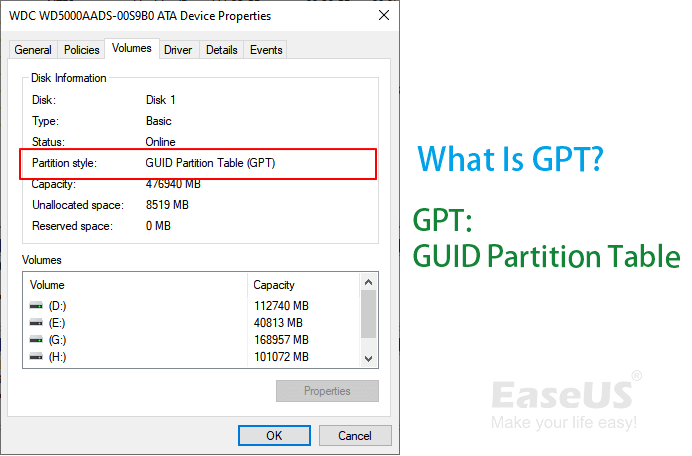
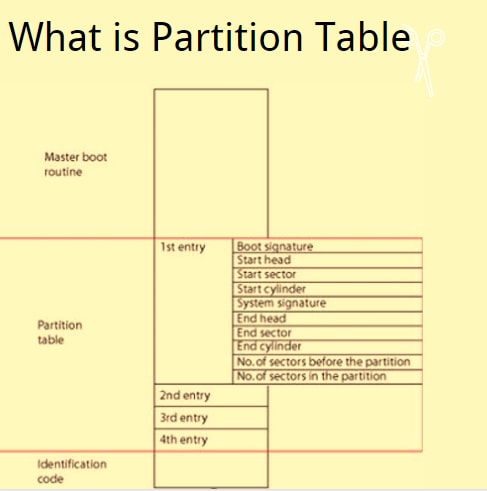
A partition table is a map. It sits at the start of a disk. It tells the system where each partition lives.
This beginner guide to disk partition terminology must cover MBR and GPT. MBR is old but still common. It supports up to 2 TB per disk and four primary partitions. You can use an extended partition to hold more logical ones.
GPT is the modern standard. It supports huge disks and many partitions. It works best with UEFI firmware. It also stores backup metadata for safety. Windows can only boot GPT in UEFI mode. Macs and most Linux setups prefer GPT for new installs.
Pro tip: choose GPT for new SSDs. It is safer and more flexible.
Essential partition and volume glossary
Use this beginner guide to disk partition terminology to learn the words you will see in tools:
- Primary partition: a direct partition used for boot or data.
- Extended partition: a holder for many logical partitions on MBR.
- Logical partition: a partition inside the extended one.
- System partition (Windows): holds boot files.
- Boot partition (Windows): holds the Windows OS files (often C:).
- EFI System Partition (ESP): small FAT32 partition for UEFI boot files.
- Microsoft Reserved Partition (MSR): tiny GPT helper for Windows.
- Recovery partition: stores tools to fix or reset the OS.
- Swap (Linux): space for memory overflow or hibernation.
- LVM (Linux): logical volume manager for flexible sizing.
- RAID: combines disks for speed or redundancy.
- File systems: NTFS, FAT32, exFAT, ext4, APFS, HFS+. Each has pros and cons.
- Allocation unit size: also called cluster size. Affects small file storage.
- Mount point: where the system attaches a volume. Example: /home.
- Drive letter: Windows style names like C:, D:, E:.
- Volume label: friendly name you choose.
- UUID or GUID: unique IDs for partitions or volumes. Great for stable mounts.
- BitLocker, FileVault, LUKS: full disk encryption options.
Watch out for ESP wipes. Never format ESP as NTFS. Keep it FAT32.
How Windows, macOS, and Linux name partitions
Knowing the names helps you act with care. This beginner guide to disk partition terminology maps terms across systems.
Windows
- Tools: Disk Management, diskpart, PowerShell.
- Names: Disk 0, Partition 1, Volume C:.
- Common layout on GPT: EFI, MSR, Windows, Recovery.
macOS
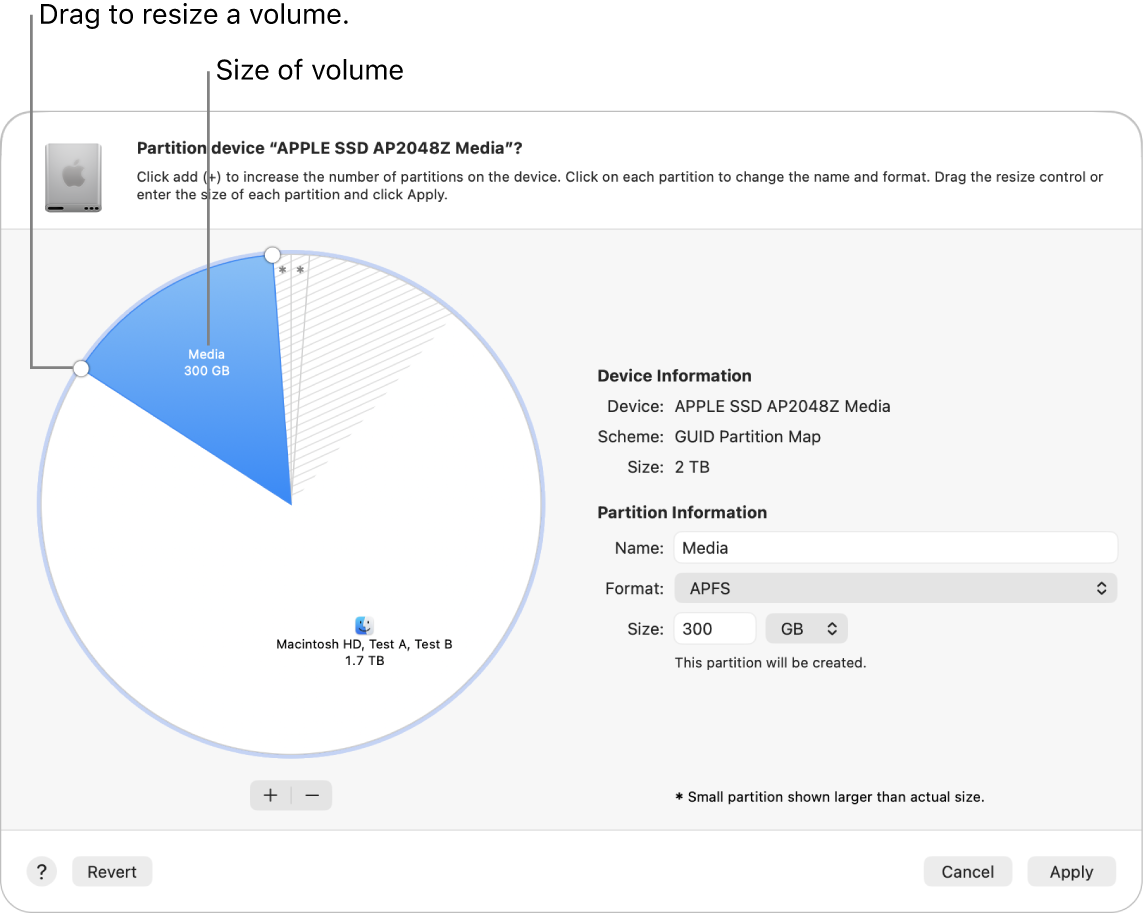
- Tools: Disk Utility, diskutil list.
- Names: disk0, disk0s1, APFS containers and volumes.
- APFS can host many volumes that share space.
Linux
- Tools: lsblk, fdisk, parted, blkid.
- Names: /dev/sda1, /dev/nvme0n1p1.
- LVM layers: PV (disk), VG (group), LV (volume).
Personal tip: read-only first. Run list commands before you change anything.
Planning a safe partition scheme
This beginner guide to disk partition terminology gives simple plans you can apply today.
Single-OS laptop (UEFI, GPT):
- EFI System Partition: 300–500 MB, FAT32.
- MSR: 16 MB (Windows only).
- OS volume: most of the disk.
- Recovery: 500 MB to a few GB.
Dual-boot Windows and Linux (same disk, GPT):
- ESP: 500 MB shared by both.
- Windows: enough for apps and files.
- Linux root: 30–50 GB.
- Linux home: the rest.
- Swap: 1–2 times RAM if you hibernate.
External drive for sharing:
- exFAT if you use Windows and macOS.
- NTFS for Windows only.
- ext4 for Linux only.
Use 1 MiB alignment. It works well with SSDs. Leave 10–20% free space for SSD health. That keeps write speed steady.
Handy tools and command cheats
A beginner guide to disk partition terminology should point to tools you can trust.
Windows
- diskmgmt.msc to open Disk Management.
- diskpart for scripts. Use list disk, list volume, select disk N.
macOS
- Disk Utility for simple work.
- diskutil list to inspect. diskutil apfs addVolume to add.
Linux
- lsblk to see devices. blkid to see UUIDs.
- fdisk or gdisk for MBR or GPT.
- parted for precise resize.
- lvcreate, lvextend, lvreduce for LVM.
Use these in read-only mode first. Confirm the right disk.
Safety, backups, and common mistakes
This beginner guide to disk partition terminology would be incomplete without safety.
Avoid these mistakes:
- Skipping a backup before resize or move.
- Mixing MBR and GPT on the same disk by accident.
- Formatting the wrong partition due to a drive letter change.
- Deleting the ESP or Recovery partition.
- Shrinking partitions too far, which can corrupt files.
- Working on a low battery or during power risk.
- Forgetting to turn off encryption before resizing.
Lessons learned: I once wiped an ESP on a client drive. The OS would not boot. We recovered by rebuilding the boot files, but it cost time. Double-check the partition type every time.
Step-by-step: create and resize partitions safely
Follow this beginner guide to disk partition terminology plan for safe changes:
- Back up your data. Verify the backup opens.
- Identify the disk and partitions. Use lsblk, diskutil list, or Disk Management.
- Check the partition table. Choose GPT for new systems.
- Turn off encryption if needed.
- Shrink the source volume to free space.
- Create the new partition in the free space.
- Format with the right file system for your OS and use.
- Assign a drive letter or set a mount point.
- Move data. Test open, save, and boot.
- Document labels and UUIDs.
Tip: make only one change at a time. Test after each step.
Performance and health tips
This beginner guide to disk partition terminology also covers speed and drive life.
- Use GPT and 1 MiB alignment on SSDs.
- Leave 10% free space on SSDs for wear leveling.
- Enable TRIM on SSDs. Windows does it by default. Linux needs fstrim or mount options.
- Choose file systems that fit your use. NTFS for Windows. exFAT for cross-platform. ext4 for Linux.
- Check SMART health monthly. Replace shaky drives early.
These small steps prevent slowdowns. They also prevent surprise failures.
Troubleshooting quick wins
When things break, act with a calm plan. This beginner guide to disk partition terminology gives quick fixes.
- Windows boot issues: run Startup Repair. Or use bootrec /fixboot and /rebuildbcd.
- Linux boot issues: chroot from live media. Run grub-install and update-grub. Fix ESP mounts with efibootmgr.
- File system errors: run chkdsk, fsck, or disk utility repairs.
- Lost partitions: try TestDisk to rebuild tables.
- Health checks: use smartctl to read SMART and run tests.
Do not write to a failing disk more than needed. Clone first if data matters.
Frequently Asked Questions of beginner guide to disk partition terminology
What is the difference between a partition and a volume?
A partition is a slice of a disk. A volume is what the OS mounts and uses.
Should I use MBR or GPT for a new SSD?
Use GPT for modern systems. It supports UEFI, large disks, and more partitions.
How big should the EFI System Partition be?
Make it 300–500 MB. It stores boot files for one or more systems.
Can I share one ESP for Windows and Linux?
Yes, UEFI allows one shared ESP. Keep it FAT32 and do not store data there.
Is exFAT good for cross-platform drives?
Yes, exFAT works on Windows, macOS, and most Linux systems. It has no 4 GB file limit like FAT32.
How often should the keyword appear in a beginner guide to disk partition terminology?
Use it when it helps readers find and trust the guide. Avoid stuffing; focus on clarity and value.
Conclusion
You now speak the language of disks, partitions, and volumes. You can plan layouts, pick GPT, and avoid the big traps. This beginner guide to disk partition terminology gave you clear steps and tools you can use today.
Start with a backup. Label your volumes. Fix one thing at a time. Keep learning, and your systems will stay fast and safe. If this helped, subscribe for more guides, share your setup, or ask a question in the comments.



