

Use 3-2-1 backups, automate, encrypt, test restores, and centralize family ownership.
If you care about your family’s photos, school work, and passwords, you need a simple, proven system. I’ve spent years building and fixing backup plans for households. In this guide, I break down the best practices for family device backups with clear steps, real examples, and tools that work in real life.
Start with the 3-2-1 rule: your safety net
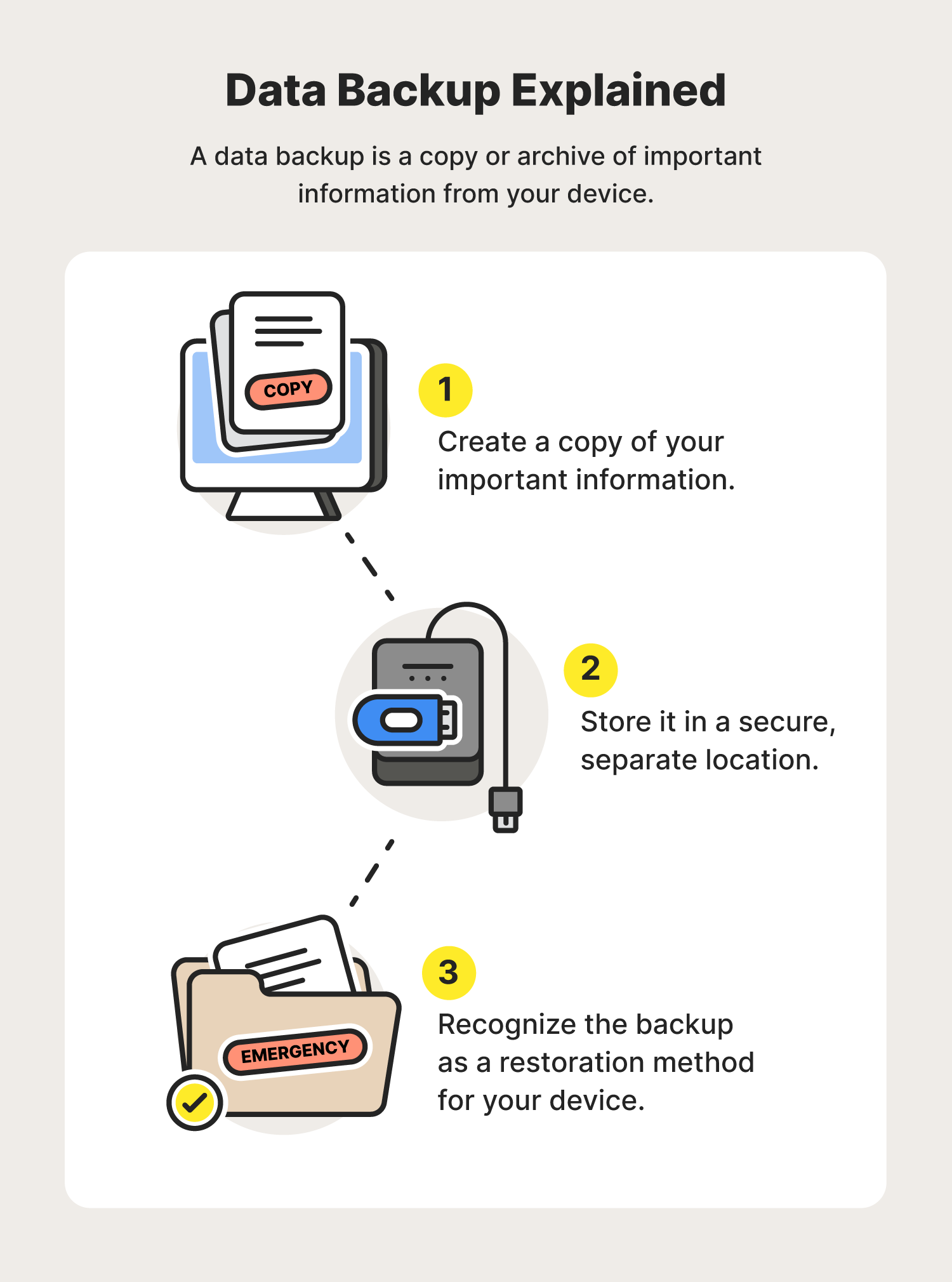
The 3-2-1 rule is the backbone of best practices for family device backups. Keep three copies of your data, on two types of media, with one copy offsite. This protects you from device failure, theft, and fire.
Use this simple map:
- Primary data: phones, tablets, laptops, consoles.
- Local backup: external drive or a home NAS.
- Offsite backup: cloud service with version history.
In my work with families, this rule stops panic. A cracked phone or a spilled drink becomes a short task, not a crisis.

Build a simple home backup plan
A plan turns good ideas into habits. Best practices for family device backups start with a one-page plan everyone can follow.
Do this:
- List every device and owner. Note what matters on each device.
- Pick tools for each device. Keep them the same across the family when you can.
- Set a schedule. Daily for phones to cloud, hourly for computers to local drives, weekly for a second offsite copy.
- Assign a backup captain. One adult owns logins, keys, and billing.
A common mistake I see: scattered accounts and no single owner. When someone leaves for college or swaps phones, the plan breaks. Centralize ownership but allow each person to manage their device day to day.

Choose the right tools that fit your family
The right tool is the one you will use. Best practices for family device backups favor tools with automation, version history, and simple restore.
Good picks by platform:
- iPhone and iPad: iCloud Backup for the device; iCloud Photos or Google Photos for media.
- Android: Google One backup for device; Google Photos for media.
- Windows: OneDrive plus File History or dedicated backup software.
- macOS: Time Machine to an external drive or NAS; iCloud Drive for key folders.
- ChromeOS: Google Drive sync for files; Android backup for apps if used.
Add-ons that help:
- NAS for home (with RAID, snapshots, and remote access).
- Photo services with face recognition and deduplication.
- Messaging backups for WhatsApp, iMessage, and Signal (where supported).
- Family password manager for logins, recovery codes, and Wi‑Fi keys.
Pick tools that offer end-to-end encryption or zero-knowledge design when possible. That is a key part of best practices for family device backups.

Automate and schedule everything
People forget. Software does not. Automation is at the heart of best practices for family device backups.
Set it and check it:
- Phones: turn on iCloud or Google One automatic backups over Wi‑Fi. Ensure Photos backup is on.
- Computers: schedule Time Machine, File History, or third-party backups to run hourly or daily.
- NAS: enable nightly snapshots and a weekly sync to cloud storage.
- Verify alerts: make sure failure notices go to the backup captain’s email.
I once helped a family who thought backups ran for months. The external drive had been full the whole time. Turn on alerts and test monthly.

Secure your backups like valuables
Security and privacy matter. Best practices for family device backups defend against theft, leaks, and ransomware.
Cover the basics:
- Use a password manager and strong, unique passwords.
- Add MFA to cloud backup services and storage accounts.
- Turn on encryption at rest for drives, NAS, and cloud. Keep recovery keys safe.
- Use services with file versioning and ransomware detection.
- Avoid sharing the main admin account. Use family roles and shared vaults.
Keep a printed recovery sheet in a safe place. It can include a passphrase hint, recovery codes, and the backup plan summary. Do not store raw passwords on paper.
Test restores and run quick drills
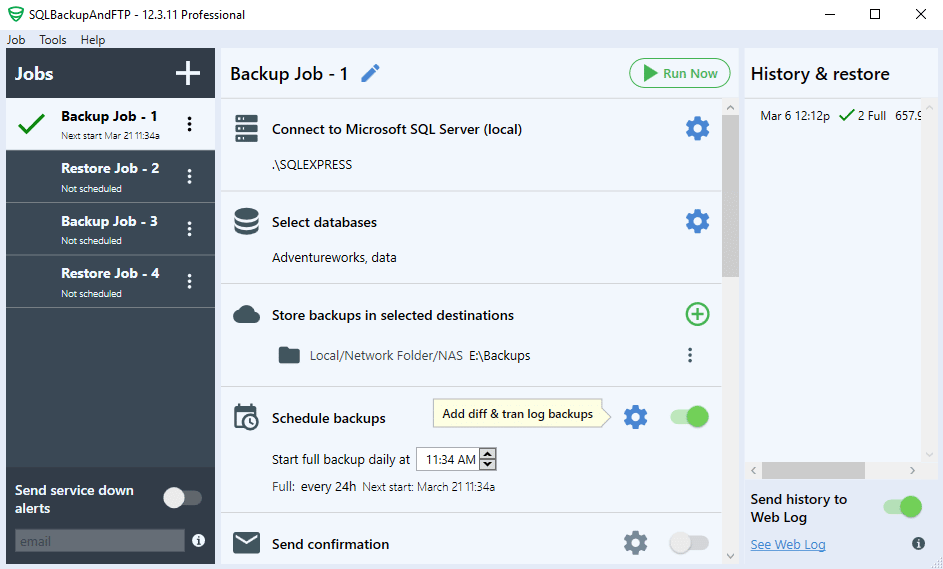
A backup you cannot restore is a false promise. Best practices for family device backups include routine restore tests.
Make it simple:
- Monthly: restore a few files to a test folder and check versions.
- Quarterly: do a full restore test on one device or a spare.
- Keep a recovery checklist. Include the order: sign in, decrypt, restore, verify.
A real story: a family lost a phone on a trip. Because we ran a 10-minute restore drill once, they set up a new phone in under an hour. Confidence beats guesswork.

Organize files so backups stay clean
Clutter inflates storage and slows restores. Best practices for family device backups start with simple structure.
Use light rules:
- Create shared family folders: Photos, School, Finance, Medical, Home.
- Use clear names with dates: 2025-03-Science-Fair.pdf.
- Deduplicate photos and videos twice a year.
- Archive big, old projects to cheaper storage.
Clean structure means you can find the one photo or tax PDF fast. It also cuts your cloud bill.
Protect kids’ data and schoolwork
Kids change devices often. School apps can be messy. Best practices for family device backups should cover child privacy and smooth handoffs.
Try this:
- Turn on device backup for each child’s account. Check Photo and Docs sync.
- Keep school files in shared family folders, not only in school accounts.
- Save copies of big projects to family storage at semester end.
- Prepare a new phone day checklist: backup, sign out, erase, restore, test.
Teach older kids to do a monthly check. In my experience, making them the hero of their data builds good habits fast.
Special cases many families miss
These items cause the most pain when lost. Best practices for family device backups must include them.
Do not forget:
- Two-factor backup codes: store in a shared password manager vault.
- Messaging: iMessage in iCloud and WhatsApp cloud backups where allowed.
- Photos and videos: use both device cloud backup and a second library copy.
- Game saves: check each platform’s cloud sync and export where possible.
- Social media: export archives twice a year and store in family folders.
- Legal and medical: scan to PDF, encrypt, and back up offsite.
These small steps remove the “we lost it” moments that lead to stress.
Budget and storage planning
Money matters. Best practices for family device backups balance cost, risk, and time.
Plan it out:
- Estimate size: photos, videos, docs, and app data for each person.
- Choose tiers: family cloud plan, one or two external drives, and a NAS if needed.
- Compare cost of time and loss. A few dollars a month beats losing years of photos.
- Watch renewals. Use annual billing for discounts when stable.
A simple rule: two paid services and one physical device is enough for most homes.
Travel and emergency readiness
Trips and storms happen. Best practices for family device backups include an away kit.
Pack and prepare:
- Encrypted portable SSD with recent copies of key folders.
- Cloud backup verified before departure.
- Offline copies of IDs, tickets, and contact lists on an encrypted phone app.
- A small checklist: charge, sync, confirm, lock.
If a bag goes missing, you still have your life in your pocket.
A practical maintenance checklist
Turn best practices for family device backups into repeatable habits. Keep this checklist on the fridge or in your notes app.
Weekly:
- Confirm phone and photo backups completed.
- Check alerts for failures.
Monthly:
- Test-restore a few files from cloud and local storage.
- Review storage use and delete junk.
Quarterly:
- Deep photo dedup and album clean-up.
- Verify recovery keys and family access.
Yearly:
- Replace aging external drives.
- Review services, costs, and plan updates.
Make it fun. Pick a pizza night and do it together. Short, steady steps win.
Frequently Asked Questions of best practices for family device backups
What is the 3-2-1 backup rule?
You keep three copies of your data, on two types of storage, with one offsite. It’s a simple way to survive device failure, theft, and disasters.
Is cloud storage alone enough for a family?
Cloud helps, but it is only one layer. Pair it with a local backup and version history to cover ransomware and outages.
How often should we back up phones and laptops?
Back up phones daily to the cloud and laptops hourly to a local drive. Add a weekly or monthly offsite copy for extra safety.
How do we protect backups from ransomware?
Use versioning, snapshots, and an offline or immutable copy. Do not map backup storage as always-on writable drives.
What should we back up first if time is short?
Start with photos, IDs, schoolwork, finance, and passwords. Then add app data, messages, and projects.
How do we store recovery keys and passwords safely?
Use a family password manager with shared vaults and MFA. Keep a printed recovery sheet in a secure place.
Conclusion
A reliable backup plan is a family safety net. Use the 3-2-1 rule, automate, encrypt, and test. Build a simple plan with clear roles, clean structure, and tools you trust. These are the best practices for family device backups that hold up when life gets messy.
Make your first move today. Turn on device backups, set alerts, and schedule a test restore. Want more tips like this? Subscribe, share this guide with your family, and leave a comment with your setup.



