
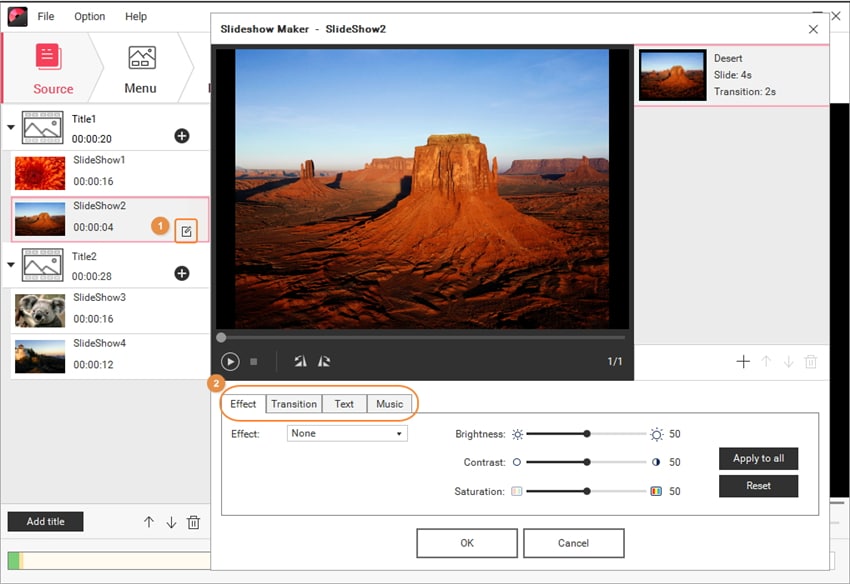
Add background music to a DVD by editing audio, exporting, and authoring.
If you want your video to feel polished and professional, the soundtrack matters. In this guide on how to add background music dvd, I’ll walk you through every step, from picking the right track to burning a reliable disc. I’ve produced event, wedding, and training DVDs for years. I’ll share the exact tools and settings that work, plus simple tips to avoid sync issues, clipping, and menu glitches. Read on, and your next disc will look and sound great.
What you need before you start
You only need a few tools to master how to add background music dvd. Keep your setup simple and stable.
Recommended tools:
- Video editor for mixing audio and picture. Try DaVinci Resolve (free), Shotcut (free), Adobe Premiere Pro, or Premiere Elements.
- Audio editor for cleanup. Audacity (free) works well for noise removal and fades.
- DVD authoring software. DVDStyler (free), DVD Flick (free), AVStoDVD (free), or professional options like Adobe Encore (legacy) and Roxio Creator.
- Disc burning utility. ImgBurn (free, Windows), Burn (free, macOS), or your authoring app’s built-in burner.
- Quality DVD-R media. Use Verbatim or Taiyo Yuden. Cheap discs fail more.
Key specs to remember:
- DVD video uses MPEG-2.
- Audio must be 48 kHz sample rate. Use AC-3 (Dolby Digital) or PCM.
- NTSC is 720×480 at 29.97 fps. PAL is 720×576 at 25 fps.
Have a plan for the music. Know where it should sit under voice. Decide where to fade and where to pause. This sets you up to learn how to add background music dvd with less trial and error.
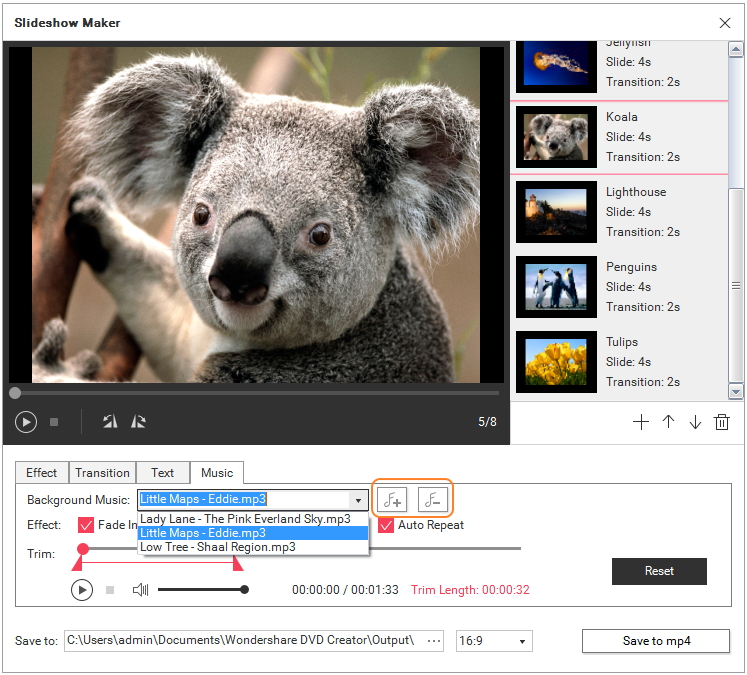
Step-by-step: how to add background music to a DVD
Follow this simple path to nail how to add background music dvd the right way.
- Prepare your assets
- Gather your video files in the final order.
- Pick a music track that fits mood and rights.
- Convert music to WAV or AC-3 at 48 kHz.
- Edit and mix
- Import video and audio into your editor.
- Place music on a separate audio track.
- Trim the music to match scenes.
- Add fades in and out so cuts feel smooth.
- Set levels
- Keep dialogue clear. Aim for peaks around −6 dBFS.
- Keep music under speech. Aim for −25 to −18 dBFS.
- Duck music under voice. Use simple keyframes for dips.
- Export assets
- Export video as high-quality master, or let the authoring app encode.
- If exporting to MPEG-2, use 2-pass VBR. Average 6–7 Mbps. Max 8–9 Mbps.
- Export audio as AC-3 stereo at 192–256 kbps, 48 kHz.
- Author the DVD
- Open your authoring app.
- Import the video and audio files as one title. Many apps link them.
- Create chapters at logical points.
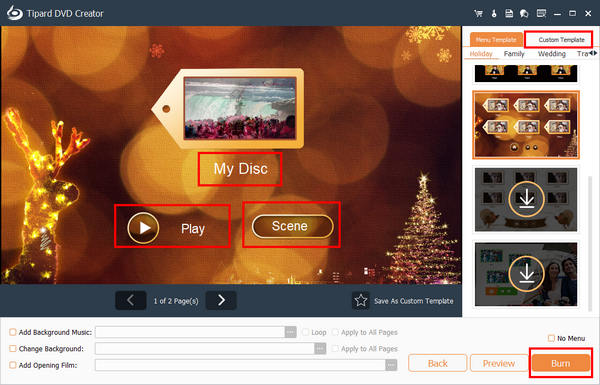
- Design a menu if needed. Set menu background music and loop.
- Burn and verify
- Burn at 4x or 8x for fewer errors.
- Enable Verify. It checks the burn.
- Test on two standalone players and one computer.
This process is how to add background music dvd without headaches. It works for home videos, weddings, or training discs.
 preparing the right background music"
style="max-width: 100%; height: auto; border: 2px solid black; border-radius: 10px; display: block; margin: 0 auto;"
loading="lazy"
/>
Choosing and preparing the right background music
Good music lifts emotion. The wrong track ruins clarity. Here is how to add background music dvd with purpose.
Selection tips:
- Match track energy to the scene. Slow for speeches. Upbeat for highlights.
- Use instrumental tracks when people talk. Lyrics fight with voices.
- Pick consistent style across the disc. It feels cohesive.
Prep steps:
- Clean the track in Audacity. Trim noise and add gentle fades.
- Normalize loudness for even playback. A small, steady level is best.
- Convert to 48 kHz. Use WAV or AC-3 for DVD authoring.
Looping basics:
- Create a seamless loop by cutting on a beat.
- Crossfade the end and start by 200–500 ms.
- Test the loop in the authoring preview.
If you care about how to add background music dvd at a pro level, start with better sources. A clean, licensed master saves time and keeps you legal.
Mixing tips so music enhances, not distracts
Small moves make a big difference in how to add background music dvd.
Practical tips I use:
- Duck only when someone speaks. Bring music back between lines.
- Cut low rumble from music with a gentle high-pass at 50–80 Hz.
- Add light compression to dialogue so it stays steady.
- Use sidechain ducking if your editor supports it. It is fast and clean.
- Avoid hard stereo pans. Keep music centered or slightly wide.
Simple test:
- Play on small speakers at low volume. If you can still hear every word, your mix is safe.
- Step away from the speakers. Room checks reveal harsh highs and muddy lows.
I learned this mixing DVDs for weddings. Big rooms make music feel louder than in the edit bay. Always mix with headroom. That is how to add background music dvd that translates to TVs and players.

Export settings that work on most DVD players
Export choices affect quality and playback. For how to add background music dvd, stick to known-good settings.
Video:
- Codec: MPEG-2
- Resolution: NTSC 720×480 or PAL 720×576
- Frame rate: 29.97 fps (NTSC) or 25 fps (PAL)
- Bitrate: 2-pass VBR, average 6–7 Mbps, max 8–9 Mbps
Audio:
- Codec: AC-3 stereo at 192–256 kbps or PCM 16-bit
- Sample rate: 48 kHz
- Keep peaks under −3 dBFS to avoid clipping
Limits:
- The combined bitrate for video and audio must stay under 9.8 Mbps.
- Long projects need lower video bitrates. Use a bitrate calculator.
These settings are common in pro workflows. They keep your how to add background music dvd build stable on old players and modern setups.

Add music to DVD menus and set loops
Menu music sets the tone before playback. It is part of how to add background music dvd with polish.
Steps:
- In your authoring app, select the menu timeline.
- Add your music as the menu audio track.
- Set loop length to 20–30 seconds for comfort.
- Use a graceful fade-out before loop repeats.
- Keep volume slightly lower than in the main title.
Menu tips:
- Avoid sudden starts. Begin on a soft beat.
- Use one theme for all menus to feel unified.
- Add a click sound on button select only if subtle.
A clean, looping menu track makes your disc feel premium. It is a quick win in how to add background music dvd.
Testing and troubleshooting common audio issues
Even pros hit snags. Here is how to add background music dvd and fix the usual problems.
If you hear no audio:
- Check the player audio mode. Switch from 5.1 to stereo.
- Confirm your disc has AC-3 or PCM, not AAC or MP3.
- Ensure the title links to the audio stream in the authoring app.
If audio drifts out of sync:
- Match frame rate and sample rate before export.
- Avoid variable frame rate sources. Convert to constant frame rate first.
- Re-encode audio at 48 kHz, then re-mux.
If the disc will not play:
- Finalize the disc after burning.
- Use UDF 1.02 for video DVDs.
- Try DVD-R media. Some players dislike DVD+R.
Real-world tip: burn at a slower speed and verify. It solves most playback calls I get. A tight test plan is core to how to add background music dvd that works everywhere.
Licensing and legal basics for background music
You must have rights to the music. This is not optional in how to add background music dvd.
Safe options:
- Buy royalty-free tracks from reputable libraries.
- Use Creative Commons music that allows commercial use. Check terms.
- Hire a composer or use licensed production music.
Avoid:
- Ripping songs from streaming or CDs without a license.
- Assuming “personal use” covers distribution. DVDs are distribution.
Document your license files. Keep receipts and terms. It protects you and your clients. This is part of a trustworthy how to add background music dvd workflow.
Common mistakes to avoid
Learn from what I have seen go wrong in how to add background music dvd.
Watch out for:
- Exporting audio at 44.1 kHz instead of 48 kHz.
- Music that is louder than dialogue.
- Using MP3 inside the authoring step. Some tools accept it, many players do not.
- Skipping chapter markers. Viewers need navigation.
- Ignoring safe bitrates. Overshooting causes stutters and stops.
- Not testing on a real player. Software players can hide problems.
Fixing these early saves time and discs.
Advanced options for a pro finish
Take how to add background music dvd a step further with these upgrades.
Ideas:
- Add a 5.1 mix if your source supports it. Also include a stereo downmix.
- Offer two audio tracks. One with music, one commentary.
- Use motion menus with matching looped music.
- Add chapter playlists for highlights reels.
These touches make your disc feel like a studio release.
Budget-friendly tool stack and sample workflow
You can master how to add background music dvd with free tools.
Suggested stack:
- Edit and mix: Shotcut or DaVinci Resolve.
- Clean audio: Audacity.
- Author: DVDStyler or AVStoDVD.
- Burn: ImgBurn or Burn (macOS).
Simple workflow:
- Edit video and music. Mix levels and add fades.
- Export video and audio as DVD-ready files.
- Author with chapters and menu music loops.
- Burn at 4x and verify. Test on two players.
This setup is fast, cheap, and reliable. I have used it on real projects.
Quick checklist: how to add background music dvd
Use this checklist before you burn.
- Music licensed and exported at 48 kHz.
- Dialogue clear, music ducked under speech.
- Video encoded as MPEG-2 at safe bitrates.
- Menu music set with clean loop and fade.
- Chapters added at key points.
- Disc burned slow and verified.
- Playback tested on different devices.
Run this list once, and you will avoid most issues. It makes how to add background music dvd smooth and stress-free.
Frequently Asked Questions of how to add background music dvd
Can I add background music without re-editing the video?
Yes. Many authoring tools let you replace or add an audio stream. But for precise control, re-editing in a video editor gives better results.
What audio format works best for DVDs?
AC-3 stereo at 192–256 kbps works on most players. PCM is uncompressed and very compatible but uses more space.
How loud should background music be under dialogue?
Keep music around −25 to −18 dBFS when people talk. Always check on small speakers to ensure words are clear.
Can I use Spotify or YouTube music on a DVD?
No. Those services do not grant sync or distribution rights. Use licensed royalty-free music or obtain a proper sync license.
Why does my audio drift out of sync after authoring?
It often comes from mixed frame rates or 44.1 kHz audio. Convert to constant frame rate video and 48 kHz audio before authoring.
How long should menu background music loops be?
Aim for 20–30 seconds with a smooth fade. Short loops feel repetitive and can annoy viewers.
Will DVD players support MP3 audio tracks?
Some might, but it is risky. Stick to AC-3 or PCM for maximum compatibility.
Conclusion
You now have a clear, repeatable workflow for how to add background music dvd. Pick the right track, mix with care, export to DVD specs, author clean menus, and test on real players. Small choices, like 48 kHz audio and slow burns, prevent big problems later.
Start with one short project and follow the checklist. You will gain speed and confidence fast. If this guide helped, subscribe for more practical post-production tips, or leave a comment with your setup and wins.



