
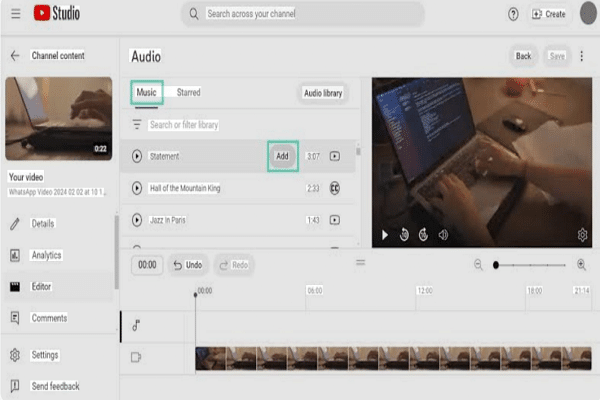
Add a music track, keep it quiet under dialogue, and fade smoothly.
If you want your clips to feel polished, learning how to add background music video is the fastest win. I’ve edited for brands, creators, and nonprofits. The same simple audio steps lifted their work from rough to pro. In this guide, I’ll show you how to add background music video on phone and desktop, set clean levels, avoid copyright traps, and export with confidence.

Why background music matters
Good background music sets mood, pace, and emotion. It guides the viewer and makes cuts feel natural. Even small tweaks can boost watch time and brand recall.
From years of editing, I’ve seen music fix awkward pauses and dull B-roll. If you came here to learn how to add background music video fast, you’re in the right place. You will leave with a workflow you can repeat for every edit.
Choose the right track and stay legal
Picking the song is half the battle. Choose tracks that match your story, tempo, and energy.
Use safe sources
- Royalty-free libraries are the easiest path. They provide clear licenses.
- Creative Commons works if the license allows commercial use. Check attribution rules.
- Avoid popular commercial songs unless you have written permission. Claims can mute or remove your video.
Match the mood
- For voice-over, use light, steady tracks. Ambient, lo-fi, or soft piano work well.
- For product demos, try minimal electronic or soft beats with simple patterns.
- For reels or shorts, pick high-energy tracks with clear drops.
Technical tips
- Aim for 44.1 kHz or 48 kHz audio. Most editors prefer 48 kHz.
- Loop-friendly music saves time. Look for tracks with clean intros and outros.
- Short form often loops every 15–30 seconds. Mark the beat and cut on the bar.
If you came to learn how to add background music video without a copyright claim, follow the license text closely. Keep proof of purchase or license terms.

Tools to add music on phone and desktop
You can add music with free or paid tools. The steps are almost the same.
Mobile editors
- iPhone: iMovie, CapCut, VN. Import your clip, then add audio from Files or Music. Drag to align the track, lower levels, and add fades.
- Android: CapCut, InShot, VN. Add your video, then import music. Set volume and use keyframes or the ducking tool if available.
Desktop editors
- Adobe Premiere Pro: Use the Essential Sound panel for quick ducking. Add crossfades, set levels, and export.
- Final Cut Pro: Use roles for dialogue and music. Add fades and keyframe volume.
- DaVinci Resolve: Fairlight gives great control. Sidechain compress the music under voice.
- Free options: Clipchamp, Shotcut, and CapCut Desktop. They handle basic steps well.
If you need a fast path for how to add background music video, start with CapCut or iMovie. They are simple and reliable.
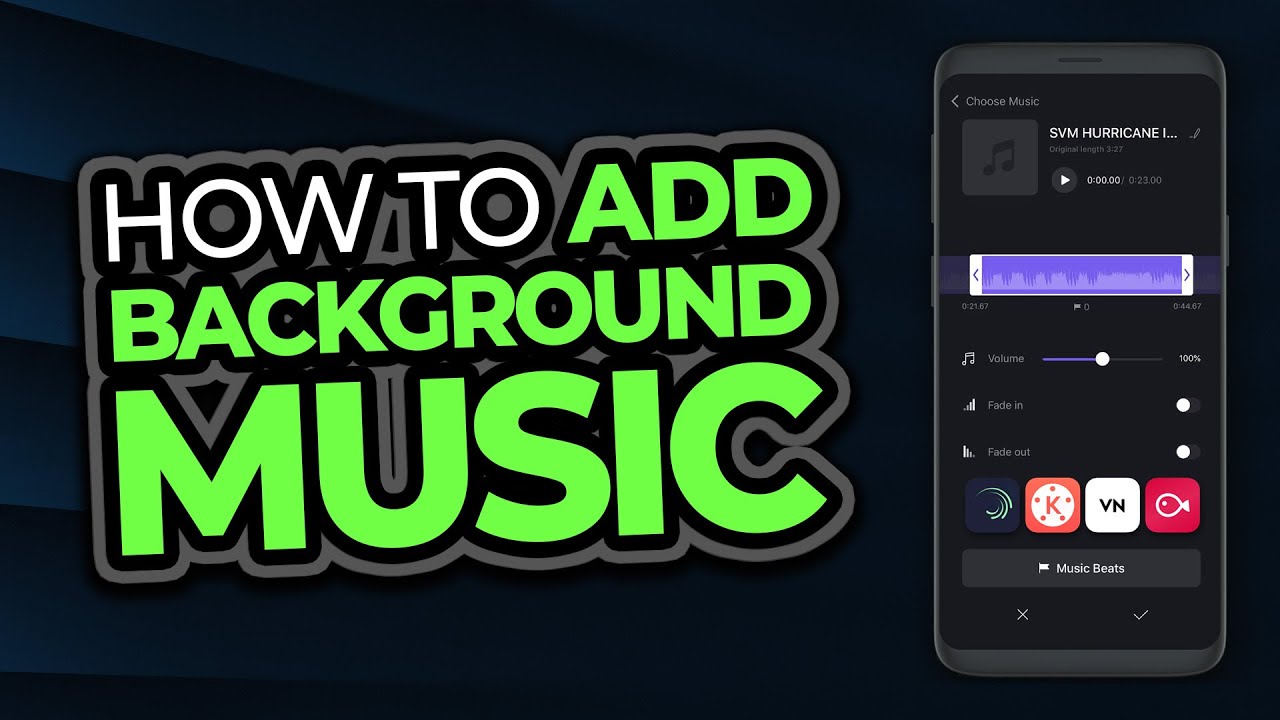
Step-by-step: how to add background music video like a pro
Follow this repeatable workflow. It works in most editors.
Import and prep
- Create a new project at your video resolution and frame rate.
- Import the video and the music track.
- Drop the video on track 1, music on track 2.
Trim and align
- Find a natural start. Avoid heavy intros when someone is speaking early.
- Cut music at the beat. Use waveforms to spot the downbeat.
- Use a short fade-in, 6–12 frames, to avoid harsh starts.
Set clean levels
- Keep dialogue loud and clear. Target peaks around minus 6 dBFS.
- Set music under speech at minus 28 to minus 20 dBFS. Adjust to taste.
- If your editor shows LUFS, many platforms normalize around minus 14 LUFS. Avoid loud mixes that clip.
Add ducking
- Automatic ducking: In Premiere, tag dialogue and music in Essential Sound, then enable ducking. Adjust sensitivity and amount. In some apps like CapCut, use the duck or reduce volume during dialogue feature.
- Manual ducking: Add keyframes to lower music by 6–10 dB under voice. Raise it back up between lines.
Polish with EQ
- High-pass the music at 80–120 Hz to reduce mud.
- If voice sounds masked, dip the music around 2–4 kHz by 2–4 dB.
- For bright voice, trim a bit at 6–8 kHz in the music.
Smooth endings
- Fade out music 0.5–1.5 seconds before the final word.
- Avoid hard cuts unless you want a punchy stop for effect.
Save this checklist for how to add background music video on any project. It keeps your mix clean and easy to hear.

Export settings and platform tips
A clean export protects your sound.
Recommended audio settings
- Sample rate: 48 kHz.
- Bitrate: 192–320 kbps AAC for MP4.
- True peak: Keep under minus 1 dBTP to avoid clipping after compression.
Platform notes
- YouTube and social apps often normalize loudness near minus 14 LUFS. Overly loud music can get turned down.
- Shorts, Reels, and TikTok compress audio heavily. Test on your phone with normal volume.
- If viewers will watch on mobile, keep music a bit lower so speech is easy to hear in noisy places.
If you want a simple plan for how to add background music video to YouTube, stick to a safe range. Clear voice first, gentle music second, peaks under control.

Troubleshooting and common mistakes
Most problems are easy to fix once you know what to check.
Common issues
- Music too loud: Lower by 3–6 dB. Add ducking under voice.
- Clipping or distortion: Reduce master by 1–2 dB. Watch the true peak meter.
- Off-beat loops: Cut on the bar and crossfade 10–20 ms to hide the seam.
- Muddy voice: High-pass the music and lower around 250 Hz.
- Copyright claim: Replace the track with a licensed one and re-upload.
If you still struggle with how to add background music video without noise or harsh highs, try a softer track. Busy mixes fight with speech.

Advanced creative moves
When the basics are solid, raise the bar with smart sound design.
Try these ideas
- Beat cuts: Time your visual cuts to the snare or kick. It adds punch.
- Risers and stingers: Use a short whoosh into a logo or headline.
- Dynamic scenes: Lower music during dense dialogue. Let it breathe in B-roll.
- Stems: If you can, get stems for drums, bass, and melody. Pull down parts that clash with voice.
- Mid-side EQ: Tame wide pads in the sides so the center stays clear for speech.
Take notes on what works. You will build a style. That is the secret behind how to add background music video that feels cinematic but easy to hear.

Frequently Asked Questions of how to add background music video
What volume should background music be under dialogue?
Keep music at minus 28 to minus 20 dBFS under speech. Adjust by ear until the voice feels effortless to follow.
How do I avoid copyright issues when adding music?
Use licensed or royalty-free tracks and keep receipts. Do not use popular songs unless you have written permission.
What is the best format for exporting audio with video?
Export MP4 with AAC at 48 kHz and 192–320 kbps. Keep true peak below minus 1 dBTP to avoid clipping.
How do I add automatic ducking without pro tools?
Many editors offer simple ducking. In apps without it, add keyframes to lower music under voice by 6–10 dB.
Can I add background music on my phone and get pro results?
Yes, if you follow the steps. Use CapCut or iMovie, keep music low, add fades, and export at high quality.
What if my music loops sound obvious?
Cut on the beat and use a short crossfade. Pick tracks with steady rhythm to hide the join.
How many tracks of music should I use?
Start with one track per scene. Add risers or stingers only when they help the story.
Conclusion
You now have a clear plan for clean music mixes that serve your story. Pick the right track, set safe levels, duck under voice, and add gentle fades. Test on a phone, then export with headroom.
Put this workflow to work on your next edit today. If this helped you learn how to add background music video with confidence, try it on a 30-second clip right now. Want more guides like this? Subscribe, share with a friend, or leave a question so I can help next.



