

Update software, run reputable antivirus, enable firewall, use strong habits and backups.
If you want to learn how to protect computer from malware, you’re in the right place. I’ve helped many people recover from infections, and I’d rather help you avoid them. This guide explains how to protect computer from malware with simple steps, clear examples, and the exact settings I use at home and in the field.

What Malware Is And Why It Spreads
Malware is any software that harms your system, data, or privacy. It includes viruses, worms, spyware, adware, keyloggers, and ransomware. Knowing how attackers work makes it easier to learn how to protect computer from malware.
Think of malware like a pickpocket in a crowd. It hides in links, files, ads, and fake updates. It spreads fast when we skip updates or click in a rush. Independent tests show most attacks start with email or the web, so habits matter more than you think.
Update Everything On A Schedule
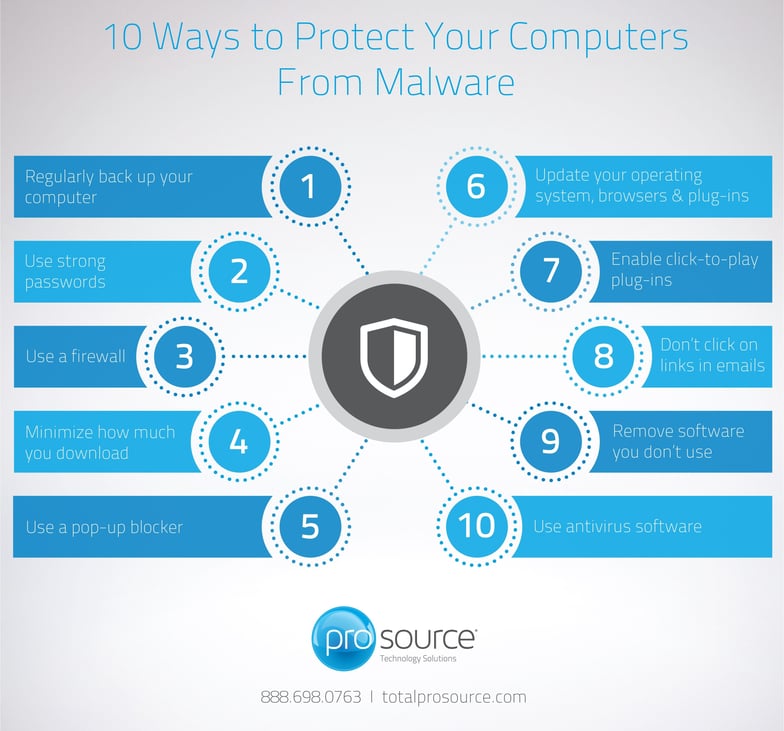
If you ask how to protect computer from malware, start with updates. Patches fix holes that bad actors use. Turn on automatic updates and set a weekly check time.
Do these now:
- Update your operating system. Use automatic updates and reboot soon after.
- Update browsers and plugins. Keep only what you use.
- Update apps like Zoom, Adobe Reader, and Office.
- Update firmware for your router, printer, and BIOS/UEFI when available.
Pro tip from the field: outdated browser extensions are common risk points. I once removed a shady coupon add-on that injected ads and tracked logins. Clean out old extensions every month.
Use Trusted Security Tools And Settings
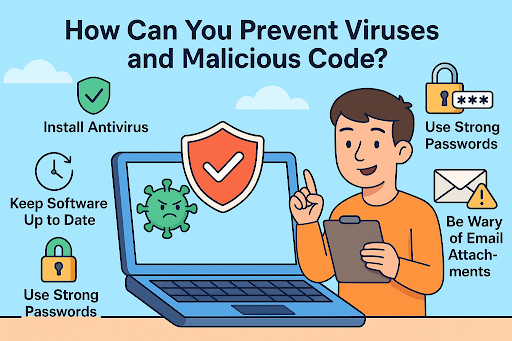
Good tools block known threats, but the right settings make them shine. This is core to how to protect computer from malware.
Set up your defenses:
- Enable built-in protection. Use Microsoft Defender on Windows or a reputable third-party tool. On macOS, keep Gatekeeper and XProtect on.
- Turn on real-time scanning and cloud protection. Allow daily or hourly definition updates.
- Schedule a weekly full scan and a daily quick scan.
- Use your system firewall. Block inbound requests you do not need.
- Add browser protection. Use safe browsing features and a reputable ad/tracker blocker.
Advanced but simple wins:
- Turn off Office macros by default.
- Show file extensions to spot fake files.
- Use a reputable DNS filter to block known bad sites.
Browse And Email Safely Every Day
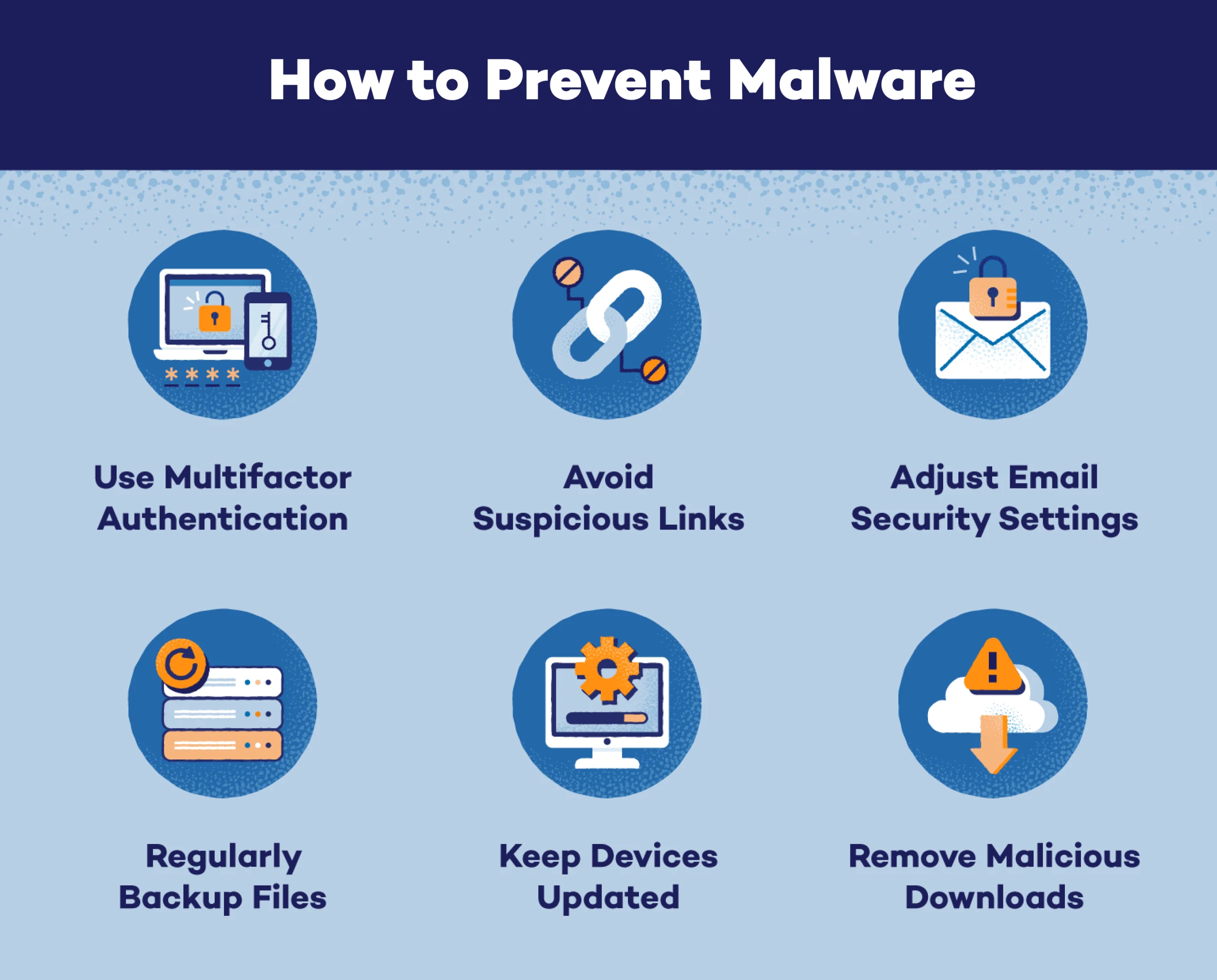
Most infections start with a click. So a big part of how to protect computer from malware is better clicks. Slow down and check the source.
Use these habits:
- Hover over links before you click. Check the real domain.
- Do not open unknown attachments. Ask the sender to confirm.
- Avoid pirated software and cracks. They are top malware carriers.
- Download only from official vendor sites or app stores.
- Watch for urgency and fear language. That is a classic trap.
A quick story: a client once clicked a “missed delivery” email and ran the file. The name ended with .pdf.exe. They did not see the extra extension. We rebuilt the system. Now they always show file extensions and they call me before opening odd files.
Lock Down Accounts And Permissions
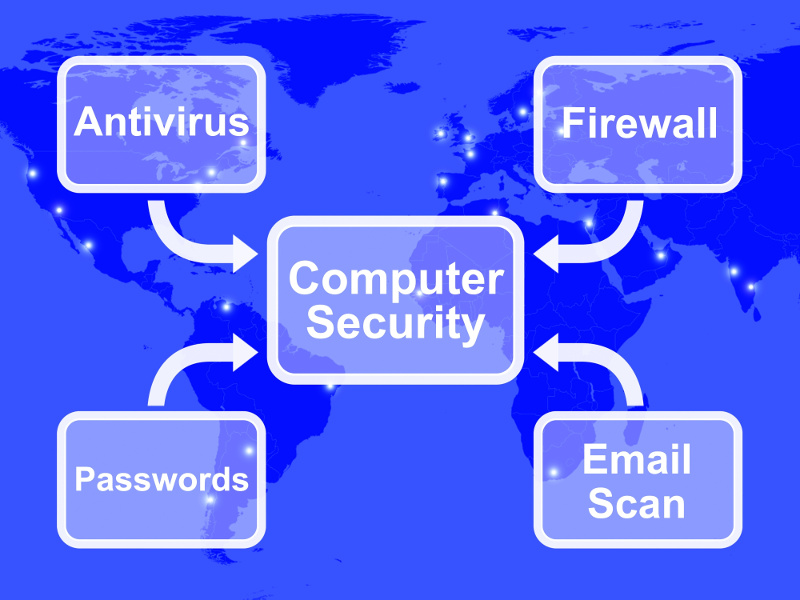
Strong access controls are key in how to protect computer from malware. If malware runs with fewer rights, damage is lower.
Do this today:
- Use a unique password for each account. Use a password manager.
- Turn on multi-factor authentication for email, banking, and work tools.
- Use a standard user account for daily use. Keep admin use to installs only.
- Lock your screen when away and set short auto-lock times.
- Review app permissions on your device every few months.
One small slip I made early in my career was using an admin account daily. A single malicious script had full control. Since moving to a standard user, that risk dropped a lot.

Secure Your Home Network And Wi‑Fi
Network basics help a lot when learning how to protect computer from malware. Your router is the front door.
Quick wins:
- Change the router’s default admin password and username.
- Update router firmware. Turn on automatic updates if offered.
- Use strong Wi‑Fi encryption. Choose WPA3 or WPA2 with a long passphrase.
- Disable WPS. It is a common weak spot.
- Create a guest network for visitors and smart devices.
- Consider a DNS filter to block malicious domains at the network level.
If you work from home, segment devices. Keep work, family, and IoT on separate networks. It makes lateral spread harder.
Back Up Smarter So You Can Recover Fast
Backups are your safety net and a core part of how to protect computer from malware. Even the best defenses can fail. Recovery is what stops a bad day from becoming a disaster.
Follow the 3-2-1 rule:
- Keep three copies of your data.
- Use two different types of storage.
- Keep one copy offline or offsite.
Practical tips:
- Use a cloud backup that keeps file versions.
- Keep an offline external drive. Disconnect it after backup.
- Test your restore process every quarter.
I have seen ransomware hit a small office. Their cloud sync copied the encrypted files. Their offline backup saved the day. We restored in hours, not weeks.

Handle Downloads, USB Drives, And Apps With Care
Removable media and random downloads are common traps. If you ask how to protect computer from malware, this is an easy area to improve.
Smart steps:
- Scan every download and USB drive before opening.
- Turn off autorun for removable media.
- Install fewer apps. Each extra app adds risk.
- Verify digital signatures for critical tools.
- Check file hashes when vendors provide them.
When I image new PCs, I whitelist needed apps and block unknown installers. Less bloat, less risk, better speed.
What To Do If You Suspect An Infection
Even if you follow how to protect computer from malware, bad things can happen. Act fast and keep calm.
Do this right away:
- Disconnect from the internet and Wi‑Fi. Unplug Ethernet.
- If you see a ransom note, do not pay. Take a photo for records.
- Use your antivirus in offline scan mode if possible.
- Remove the threat and update everything.
- Restore clean files from your backup.
- Change passwords from a clean device.
Report major incidents to local authorities or your workplace IT. Logs and screenshots help investigators find the root cause.
Extra Tips For Families And Small Teams
Policies and practice make a big difference in how to protect computer from malware at home and at work.
Helpful ideas:
- Set a short security checklist for everyone to follow.
- Run a five-minute phishing drill each month. Share real examples.
- Create a simple incident plan with roles and contacts.
- Track devices and update status in a shared sheet.
- Use automatic patching tools for multiple PCs.
I keep a one-page playbook on my fridge at home. It lists what to do, who to call, and where the backups live. Simple works.
Frequently Asked Questions of how to protect computer from malware
What is the easiest first step to stop malware?
Turn on automatic updates and reboot often. This closes known holes that attackers use.
Do I need paid antivirus if I am careful?
Care helps, but threats change fast. A reputable security suite adds layers you cannot provide on your own.
Can Macs get malware too?
Yes, Macs get adware, trojans, and ransomware. Keep macOS updated, use Gatekeeper, and add a trusted security tool.
How often should I back up my files?
Back up at least daily for work files and weekly for full images. Keep at least one offline copy.
What signs show my computer may be infected?
Watch for pop-ups, slowdowns, unknown apps, and browser redirects. Sudden file changes or ransom notes are major red flags.
Is it safe to open email attachments from friends?
Not always. Accounts get hacked, so verify unexpected files with a quick call or text before opening.
Should I use a VPN for malware protection?
A VPN encrypts traffic but does not block malware by itself. Pair it with DNS filtering and security tools.
Conclusion
You now know how to protect computer from malware with clear, repeatable steps. Update often, use trusted tools, build safe habits, and keep solid backups. Small wins stack up fast and make you a hard target.
Take one action today. Turn on automatic updates, set a backup, or run a full scan. Want more tips like this? Subscribe, share this guide with a friend, or leave your questions in the comments.



