
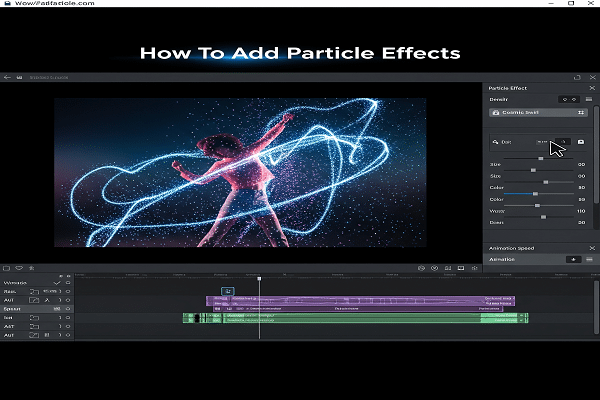
Add particle effects to video by layering emitters, tracking, and blend modes.
You want your footage to come alive with snow, sparks, dust, or magic light. In this guide, I show how to add particle effects video with pro workflows that still feel simple. I have shipped ads, music videos, and social clips with particles for years. You will learn the best tools, clear steps, and real tips that save time and raise quality.
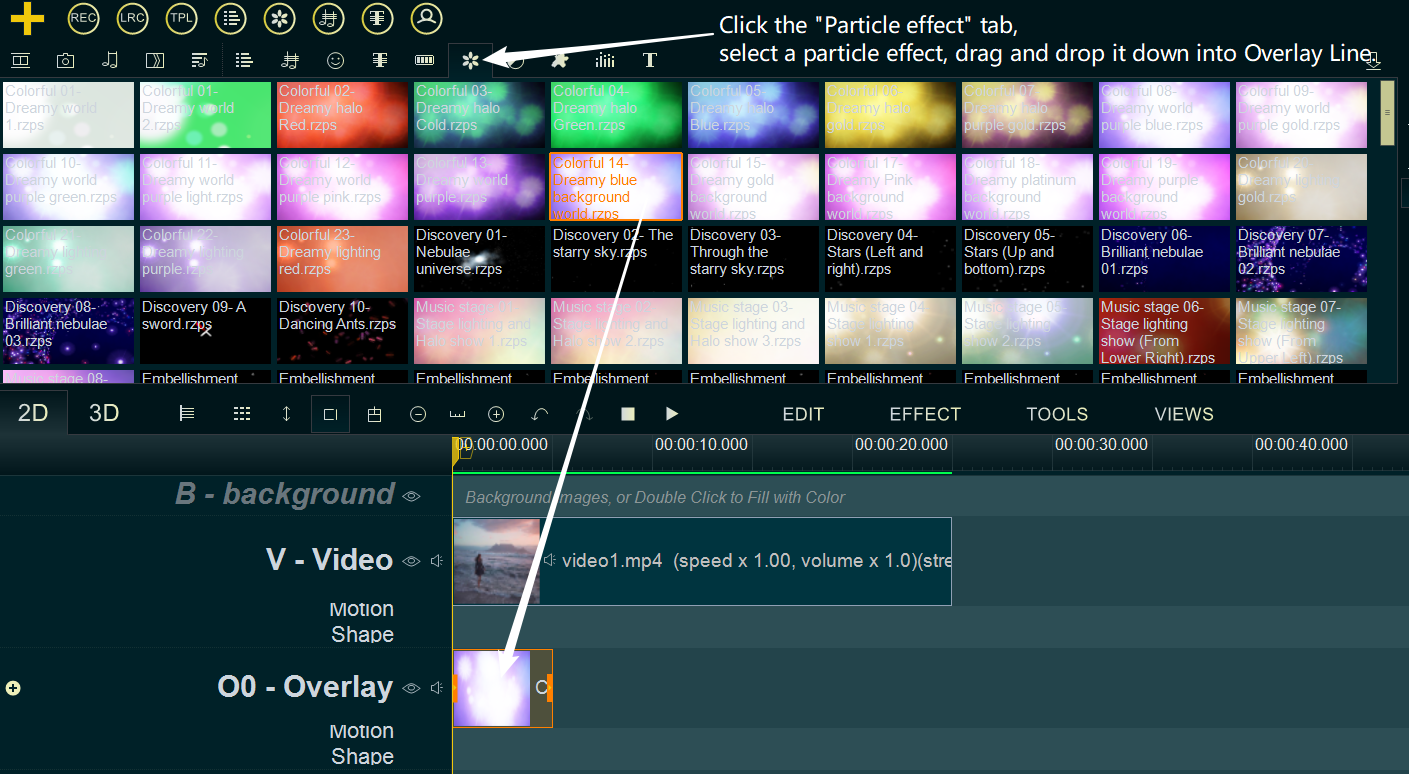
What particle effects can do for your video
Particle effects can turn a flat shot into a rich scene. Think falling snow, drifting dust, glowing bokeh, embers, rain, or confetti. You can push mood, add depth, or hide cuts. If you want to know how to add particle effects video that looks real, you must match light, motion, and color.
Use particles when you need:
- Atmosphere. Add dust in a beam or haze in a hall.
- Energy. Add sparks, streaks, or magic hits.
- Texture. Add rain or snow to set a tone fast.
- Story. Guide the eye and link cuts with a shared style.
To master how to add particle effects video, start small. One well tuned layer can beat ten messy layers.

Tools you can use to add particles
You can add particles in many apps. Pick based on budget, speed, and control.
- Adobe After Effects. Deep control. Use CC Particle World or Red Giant Particular.
- DaVinci Resolve Fusion. Node tools like pEmitter, pTurbulence, pRender.
- Apple Motion with Final Cut Pro. Fast and great for templates.
- HitFilm. Good free option with built‑in particles.
- Blender. Free, 3D, and strong for sims you render as overlays.
- Premiere Pro. Use stock overlays, or link to After Effects for full control.
- Mobile apps. CapCut, Alight Motion, VN. Good for quick blends and overlays.
If your goal is how to add particle effects video for the first time, use overlays and blend modes. If you need control for clients, use AE or Fusion.
Prep your footage like a pro
Strong prep will make even basic particles look real.
- Plan the force. Note where wind, gravity, or movement comes from.
- Shoot for the look. Higher shutter gives crisp sparks. Lower shutter gives smooth rain.
- Get a clean plate. It helps with tracking and masks.
- Keep light in mind. Particles must match color temp and exposure.
- Lock frame rate. Do not mix 24 with 30 unless you know why.
This prep pays off when you learn how to add particle effects video with tight tracking and clean blends.

Step-by-step: After Effects workflow
This is the most common path I use on client work.
- Import and track
- Import footage.
- Track the shot with Tracker or Mocha AE.
- Create a Null for the track.
- Add a particle layer
- Add a Solid. Name it Particles.
- Apply CC Particle World or Particular to the Solid.
- Parent the Solid to the track Null.
- Set the emitter
- Choose Emitter Type: Point for sparks, Box for dust, Sphere for snow.
- Place it in space. Set Direction, Velocity, and Spread.
- Shape the particles
- Use small sprites for dust, long lines for rain, textured sprites for debris.
- Set Size random. Life random helps a lot.
- Enable Opacity over Life. Use a soft fade in and out.
- Physics and style
- Add Gravity for rain or snow.
- Add Turbulence for drift and swirl.
- Use Screen or Add blend modes. Screen is safer for overlays.
- Match the shot
- Add Motion Blur.
- Add a Camera and Depth of Field if needed.
- Color match with Curves. Add slight Film Grain to blend.
- Mask and occlude
- Roto foreground to pass in front of particles where needed.
- Feather the mask for a soft join.
Tips from the field:
- Less is more. Cut particle count by 30% and see if it feels cleaner.
- Cache and pre-render long sims.
- Save presets for rain, dust, and sparks.
This is a core flow for how to add particle effects video in a flexible, pro way.

Step-by-step: DaVinci Resolve Fusion workflow
Fusion is fast once you get the nodes down.
- Make a comp
- In Edit, send the clip to Fusion.
- Add a Tracker node. Track a point and output to a Transform.
- Emit and style
- Add pEmitter. Set Style to Point, Bitmap, or Blob.
- Add pTurbulence for drift. Add pDirectionalForce for wind or gravity.
- Add pRender to get pixels.
- Merge and blend
- Merge particles over the clip.
- Use Screen or Add in the Merge node.
- Use Color Corrector to match the grade.
- Depth and masks
- Use a Polygon mask to hide particles behind objects.
- Add Motion Blur in pRender or the Merge.
This node setup makes how to add particle effects video clear and repeatable.
Step-by-step: Final Cut Pro and Apple Motion
Motion can build smart particles you use in FCP.
- In Motion, start a Particle Emitter.
- Drop in a sprite: small circle, glow, or a custom PNG.
- Set Birth Rate, Life, Speed, and Angle Range.
- Add Behaviors: Gravity, Random Motion, and Vortex.
- Publish key controls: Birth Rate, Speed, Color, Blend Mode.
- Save as a Generator or Effect. It shows up in FCP.
Now you can drag it in FCP and tune fast. This is a great path for editors who ask how to add particle effects video without leaving FCP.

Step-by-step: Premiere Pro with plugins or overlays
Premiere can do simple particles well if you use overlays.
- Drag a particle overlay above the clip.
- Set blend mode to Screen or Add.
- Use Opacity masks and Gaussian Blur to blend edges.
- Color match with Lumetri.
For deep control, send the clip to After Effects via Dynamic Link. That is how to add particle effects video while keeping an edit-first workflow.

Mobile and quick methods
You can add particles on a phone for social posts.
- CapCut and VN have particle packs. Drop on top and set blend mode.
- Use keyframe opacity to fade in and out.
- For rain or snow, slow the overlay to 80% for mood.
- Keep it light. Mobile looks can clip fast.
If you want to know how to add particle effects video on the go, overlays and blend modes are the fastest path.
.jpg?w=500&cf_fit=cover&q=85&format=auto&s=14b48e6be51c21e1a326f7106ea03ae9a77c0b3038c49d3c9ac1d4b7267f8795)
Design rules for realistic particles
Real looks need real rules. Follow these.
- Respect gravity. Rain falls fast. Dust falls slow.
- Add variation. Random size, speed, and rotation sell the look.
- Watch depth. Blur far and near more than mid.
- Match light. Warm scene, warm particles.
- Use occlusion. Some particles should pass behind objects.
- Keep lifespan short. Long life looks fake.
- Think wind. Add a small drift, even indoors.
These simple rules shape how to add particle effects video that feels true to life.
Common mistakes and how to fix them
I see these issues a lot. Fix them fast.
- Too many particles. Cut the count in half. Add motion blur to fill space.
- Wrong blend mode. Switch from Add to Screen if highs clip.
- No interaction. Add glows on lights or ground hits for sparks.
- Flat color. Add noise and film grain. Nudge hue to match grade.
- Bad track. Re-track with more points. Smooth the track.
When you learn how to add particle effects video, these fixes lift quality right away.
Performance and export settings
Particles can slow a system. Stay smooth with these tips.
- Use proxies or lower preview res.
- Pre-render heavy comps to ProRes 422 or DNxHR.
- Use GPU if your plugin supports it.
- Cache sims before final grade.
Export smart:
- Social: H.264, high bitrate, VBR 2‑pass.
- Master: ProRes 422 HQ or ProRes 4444 if you need alpha.
- Overlays for reuse: ProRes 4444 with alpha, straight or premultiplied.
Good exports help when you show how to add particle effects video across web, TV, and apps.
Advanced techniques
When you need more power, try these steps.
- 3D camera track the shot and place emitters in space.
- Use depth maps for focus and occlusion.
- Render passes from Blender for smoke or sparks, then comp.
- Build custom sprite sheets for leaves, debris, or magic hits.
- Add light-wrap. It blends particles with bright edges.
- Drive particle birth with luminance of the plate for reactive effects.
These ideas level up how to add particle effects video for films and ads.
Ready-to-use assets and where to find them
Stock overlays can save hours.
- Look for black background clips of dust, snow, rain, or sparks.
- Use Screen to drop black. Add Color to match the scene.
- Check license. Make sure you can use it for your goal.
You can also shoot your own:
- Black cloth, dark room, single light.
- Throw flour or dust. Film at high shutter.
- Blow glitter with a fan.
- Use safety gear for sparks or avoid real sparks.
This is a great hack when you ask how to add particle effects video with a tiny budget.
Workflow checklist
Here is a fast checklist you can copy.
- Lock edit. Choose target shots.
- Track motion. Create anchor points.
- Add particles. Set emitter and life.
- Blend. Use Screen or Add.
- Match scene. Color, blur, and grain.
- Mask and occlude. Add depth cues.
- Review at 100%. Trim count and adjust speed.
- Cache and render. Export masters and web.
Check each box to nail how to add particle effects video in less time.
Frequently Asked Questions of how to add particle effects video
What is the fastest way to add particles?
Use stock overlays and set blend mode to Screen. It works in most editors and takes minutes.
Do I need plugins for good results?
No. Built‑in tools and overlays can look great. Plugins add speed, control, and better physics.
How do I make particles match my scene?
Match light, color, and blur. Add grain and use masks so particles sit in space, not on top.
How many particles should I use?
Less than you think. Start low, add motion blur, and raise count only if the scene feels empty.
Can I do this on a phone?
Yes. Apps like CapCut have particle packs. Use blend modes, simple masks, and light color tweaks.
How do I keep my computer from slowing down?
Lower preview res, pre-render sims, and use GPU. Keep birth rate and lifespan modest during setup.
What settings help with snow or rain?
Use longer life, some gravity, and a bit of turbulence. Add depth by blurring near and far planes.
Conclusion
You now have a clear plan to add snow, dust, sparks, and more with control and speed. Start with one shot, track it well, and tune a single emitter until it blends. Then scale up with presets and smart exports.
Put this guide to work today. Try one method, save a preset, and build your own look kit. Want more breakdowns and project files? Subscribe, share your result, or leave a question for a custom tip.



