

Set a pivot, add rotation keyframes, choose easing, and loop at 60 fps.
If you want to learn how to animate rotating object like a pro, you’re in the right place. I’ll walk you through clear steps in CSS, JavaScript, After Effects, and Blender, backed by years of hands-on motion work. We will cover both simple spins and polished loops so your rotation looks smooth, real, and lightweight. Expect practical tips, code, and pro tricks you can apply today.

Core concepts you need before you start
Rotation is motion around a pivot. The pivot is called the anchor point in design tools and the origin in 3D apps. If the pivot is off-center, the object will orbit instead of spin.
Understand frames per second. Most projects target 60 fps for smooth motion. For web, prefer time-based animation rather than frame-based so it stays smooth on slow devices.
Know units and axes. Degrees are common in design tools. Radians are common in code. In 3D, rotation happens around X, Y, or Z. In 2D, you often rotate around Z.
Loops must be exact. A clean loop returns to the same value. For example, from 0 deg to 360 deg with linear timing.
If you want to master how to animate rotating object, start with these basics and be picky about the pivot.
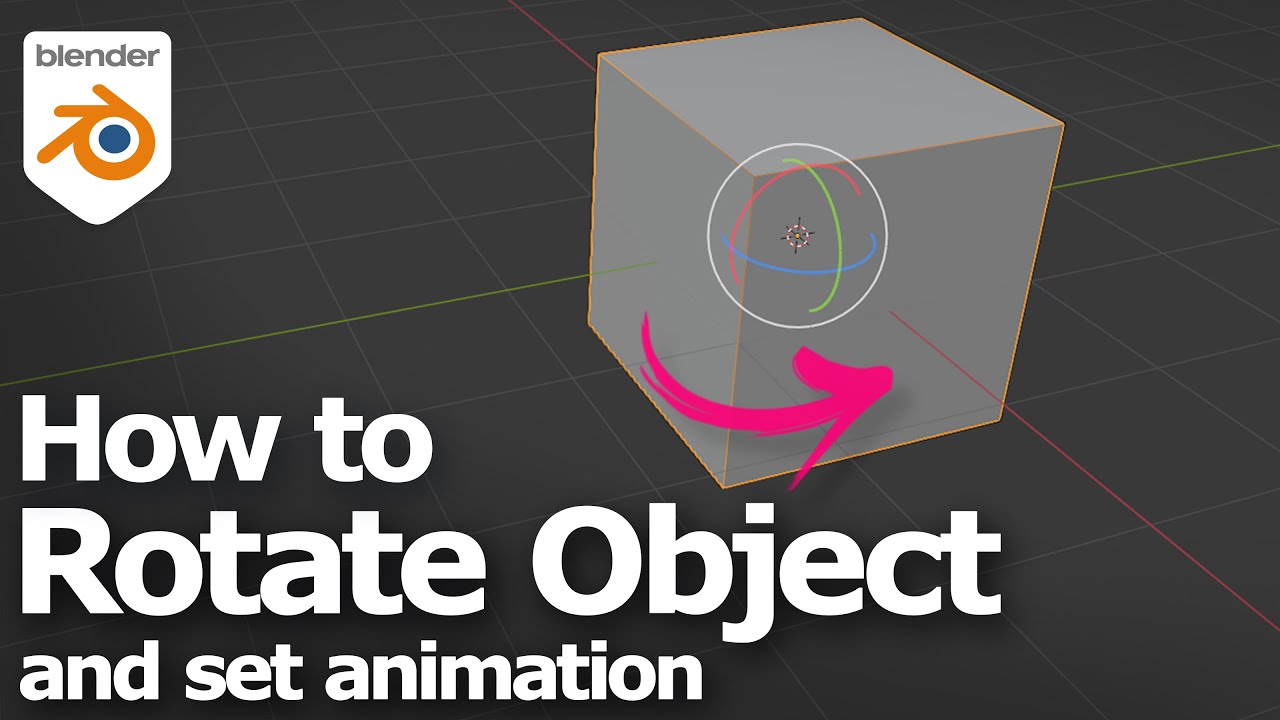
Tools and workflows to animate a rotating object
You can create rotation in many tools. Your choice depends on platform, output, and team workflow.
- CSS and SVG are best for small web icons, loaders, and logos.
- JavaScript and Canvas work when you need more control or physics.
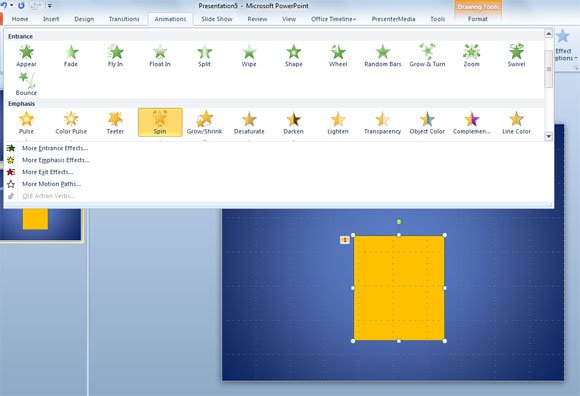
- After Effects is great for UI motion, titles, and export to video or Lottie.
- Blender shines for 3D products, character rigs, and realistic motion.
- Game engines like Unity and Unreal handle interactive spins in real time.
From my experience, plan your pivot and easing first. It saves hours later. This applies no matter how to animate rotating object in your stack.

Step-by-step: how to animate rotating object in CSS and SVG
This is fast, smooth, and very lightweight. It is perfect for loaders and looping icons.
Basic infinite spin:
<div class="spinner"></div>
.spinner {
  width: 64px;
  height: 64px;
  border: 6px solid #e5e7eb;
  border-top-color: #3b82f6;
  border-radius: 50%;
  animation: spin 1s linear infinite;
  transform-origin: 50% 50%;
}

@keyframes spin {
  from { transform: rotate(0deg); }
  to   { transform: rotate(360deg); }
}
Hover to rotate once:
.card {
  transition: transform 500ms cubic-bezier(.2,.8,.2,1);
  transform-origin: 50% 50%;
}
.card:hover {
  transform: rotate(15deg);
}
SVG icon with pivot set on center:
<svg viewBox="0 0 100 100" width="80" height="80">
  <g id="gear" transform-origin="50 50">
    <circle cx="50" cy="50" r="30" fill="none" stroke="#111" stroke-width="6" />
  </g>
</svg>
#gear {
  animation: turn 2s linear infinite;
}
@keyframes turn {
  to { transform: rotate(360deg); }
}
Respect prefers-reduced-motion:
@media (prefers-reduced-motion: reduce) {
  .spinner, #gear { animation: none; }
}
If you ask how to animate rotating object on the web, CSS is the easiest path for most cases.

Step-by-step: how to animate rotating object with JavaScript
Use requestAnimationFrame for smooth, time-based rotation. This keeps motion stable across devices.
Basic pattern:
<canvas id="c" width="200" height="200"></canvas>
<script>
const ctx = document.getElementById('c').getContext('2d');
let angle = 0;
let last = performance.now();

function draw() {
  ctx.clearRect(0, 0, 200, 200);
  ctx.save();
  ctx.translate(100, 100);      // pivot
  ctx.rotate(angle);             // <a href="https://wikipedia.org" target="_blank" rel="dofollow">radians
</a>  ctx.fillStyle = '#3b82f6';
  ctx.fillRect(-30, -30, 60, 60);
  ctx.restore();
}

function tick(now) {
  const dt = (now - last) / 1000; // seconds
  last = now;
  const speed = Math.PI;          // rad/s (180 deg/s)
  angle = (angle + speed * dt) % (Math.PI * 2);
  draw();
  requestAnimationFrame(tick);
}
requestAnimationFrame(tick);
</script>
Ease in and out for a one-off rotate:
function easeInOutCubic(t){ return t<0.5 ? 4*t*t*t : 1 - Math.pow(-2*t + 2, 3)/2; }
function animateRotate(duration=600){
  const start = performance.now();
  const startAngle = 0;
  const endAngle = Math.PI/2; // 90 deg
  function step(now){
    const t = Math.min(1, (now - start)/duration);
    const a = startAngle + (endAngle - startAngle) * easeInOutCubic(t);
    angle = a;
    draw();
    if(t < 1) requestAnimationFrame(step);
  }
  requestAnimationFrame(step);
}
If you are exploring how to animate rotating object with physics or scroll, JavaScript gives you full control with deltas, easing, and state.

Step-by-step: how to animate rotating object in After Effects
This is ideal for UI previews, ads, and export to Lottie or video.
- Import or draw your layer.
- Press Y to move the anchor point to the exact pivot.
- Press R to show Rotation or press Shift+R for 3D axes.
- Set a keyframe at 0 degrees. Move the playhead. Set another at 360.
- For a clean loop, set the keyframes to linear.
- Open the Graph Editor to adjust speed if needed.
- For endless spins, add this to Rotation: loopOut("cycle").
- Enable Motion Blur for realism if the output supports it.
When clients ask how to animate rotating object for a logo sting, this is the workflow I use. Anchor point accuracy makes or breaks the look.
Step-by-step: how to animate rotating object in Blender (3D)
Blender is a powerhouse for product and character rotations.
- Select the object. Set the origin to geometry or a custom pivot.
- Press I and insert a Rotation keyframe at frame 1.
- Go to frame 121 at 24 fps for a 5-second loop. Set Z rotation to 360.
- In the Dope Sheet, set interpolation to Linear for perfect loops.
- To repeat, open Graph Editor, add a Cycles modifier to the Z rotation.
- Use motion blur and subtle camera dolly to add depth.
If you need how to animate rotating object for a 3D hero shot, this setup keeps it clean and loopable. Be careful with gimbal lock; use quaternion rotation when rotating on multiple axes.
Best practices for smooth, realistic rotation
- Nail the pivot. A 2-pixel offset can make the spin feel wrong.
- Use linear timing for infinite loops. Use easing for one-off rotations.
- Keep loops exact. 0 to 360, not 0 to 359, to avoid a visible jump.
- Add motion blur for speed. Our eyes expect blur at high rpm.
- Fine-tune speed. Too slow feels lazy. Too fast looks cheap.
These rules apply no matter how to animate rotating object or which tool you use.

Performance, file size, and accessibility
- Prefer transforms over layout changes. In browsers, transforms are GPU-accelerated.
- Use will-change: transform sparingly on elements that animate often.
- Keep assets light. SVG over PNG when possible. Compress textures in 3D.
- Throttle animations when off-screen. Pause in hidden tabs if you can.
- Respect users. If prefers-reduced-motion is set, stop or offer a static state.
Following these helps when you plan how to animate rotating object for production apps and want smooth results on low-end phones.
Troubleshooting common rotation issues
- Object orbits instead of spins: pivot is off-center. Move anchor to the true center.
- Jitter or stutter: switch to time-based updates, not frame counts. Target 60 fps.
- Gimbal lock in 3D: use quaternions or rotate in a different order.
- Visible seam at loop: check interpolation. Use linear and match start and end angles.
- Aliasing on thin lines: add a tiny blur, thicker stroke, or higher resolution.
These fixes are my go-to list when someone asks how to animate rotating object and hits odd glitches.
Advanced techniques and creative ideas
- Scroll-driven rotation: map scroll progress to angle for product tours.
- Gear systems: link angles with ratios, like gearB = gearA * teethA / teethB.
- 3D flip cards: combine rotateY with perspective for depth.
- Physics-based spins: apply torque and damping for natural settle.
- WebGL or game engines: rotate with quaternions for multi-axis motion.
Once you learn how to animate rotating object, try these ideas to push your work from good to memorable.
Frequently Asked Questions of how to animate rotating object
What is the best fps for rotation?
Most projects target 60 fps for smooth rotation. If you export video, match the delivery frame rate like 24, 30, or 60 fps.
How do I center the pivot for a perfect spin?
In design tools, move the anchor to the visual center. In code, translate to the center, rotate, then translate back.
Why does my loop jump at the end?
The start and end values do not match. Use linear interpolation and ensure 0 and 360 degrees, not 0 and 359.
Should I use CSS or JavaScript for web rotation?
Use CSS for simple, continuous spins. Use JavaScript for user input, physics, or scroll-linked motion.
How can I reduce motion for sensitive users?
Check prefers-reduced-motion and stop or slow the animation. Offer a static alternative or a toggle in settings.
How do I avoid gimbal lock in 3D?
Use quaternion rotation or adjust Euler order. Avoid rotating large angles on multiple axes at once.
What easing should I use for one-off rotations?
Ease out for quick snaps. Ease in-out for gentle UI spins that feel polished.
Conclusion
You now have a complete path to create clean, loopable rotations in web, video, and 3D. Start by setting the pivot, pick your tool, and use time-based logic and clean easing.
Pick one project today. Add a simple spin, then refine with blur, loops, and accessibility. If this helped, subscribe for more hands-on motion tips, or leave a comment with your challenge and I’ll help you solve it.



